SketchUp is still the tool most architects reach for first. It's fast, intuitive, and gets out of your way. But when it comes to turning that model into something you can show a client, the workflow has always been the same: export a screenshot, open another application, upload, wait, download, hope it looks right.
AI rendering has changed that equation. Some tools now work directly inside SketchUp as native plugins. Others sit alongside it as real-time companions. A few are web-based but worth mentioning because they handle SketchUp exports well.
Here are ten tools worth knowing about, organised by the job each does best for a working architect who lives in SketchUp. No affiliate links or sponsored placements. We built Maquete, so its placement is not independent editorial endorsement. Product availability, platform support and public pricing were rechecked against vendor websites on 18 August 2026; prices exclude tax and may vary by region.
How this comparison was assessed
We compared the workflow from a real SketchUp view, how much control each tool gives over geometry, whether it is suitable for final stills or live walkthroughs, hardware requirements, and the cost visible on the vendor's public site. “Plugin” is used broadly here: some products run inside SketchUp, while others use LiveSync or accept an exported viewport.
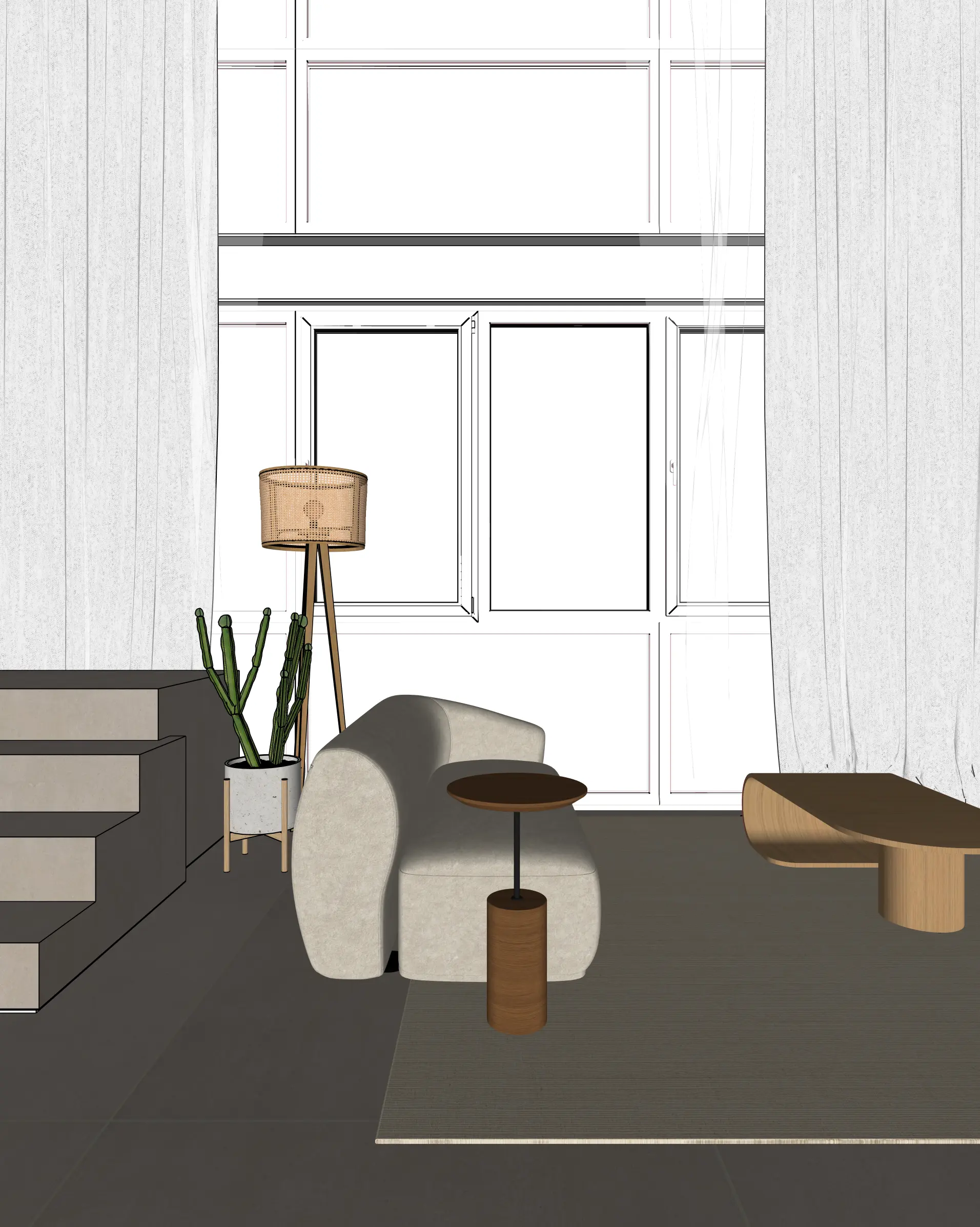
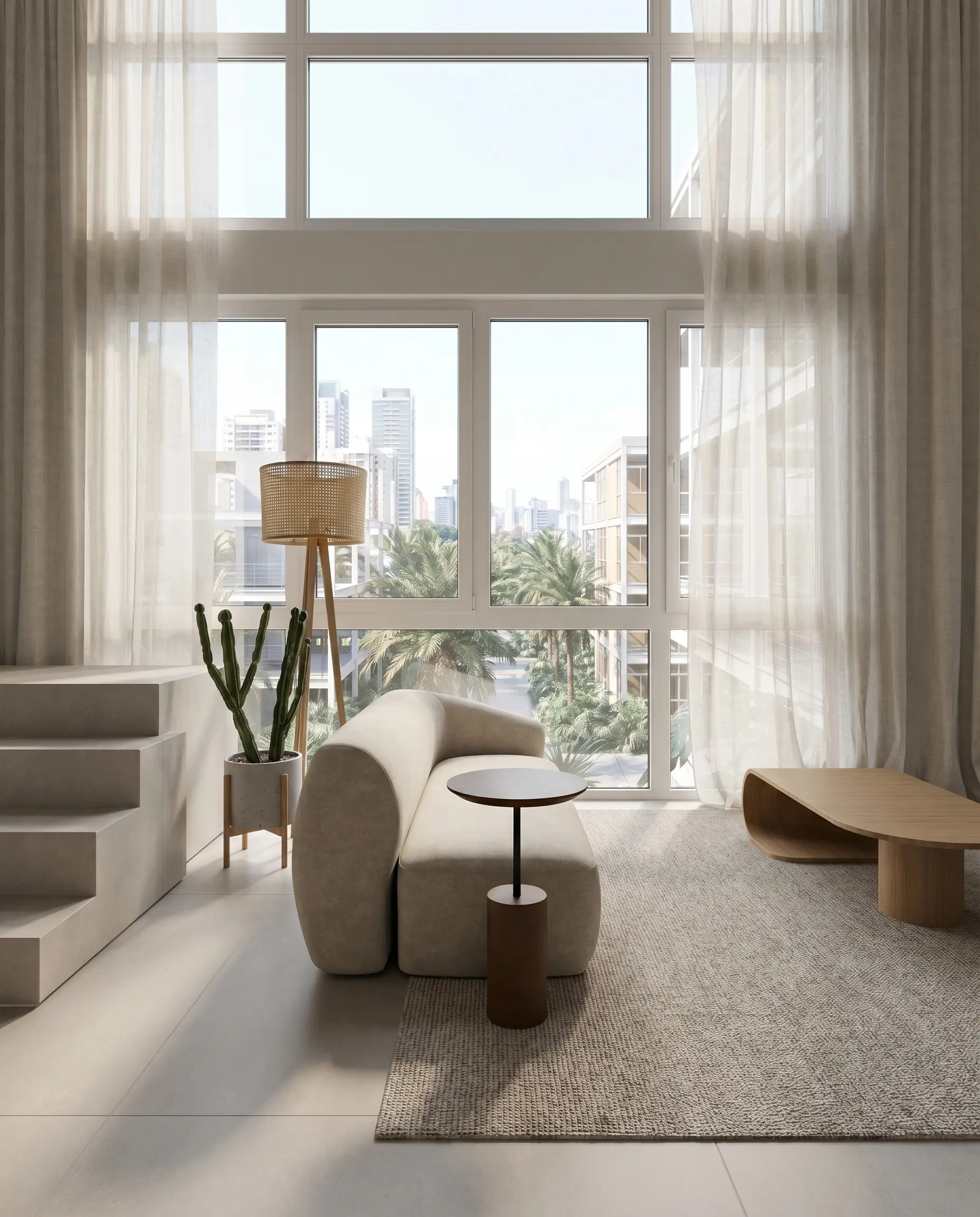
This is the kind of input/output pair used to judge whether an AI render respects a model rather than merely producing an attractive image:
Which tools run inside SketchUp?
| Workflow | Tools in this guide | What you need to check |
|---|---|---|
| Native integration | Maquete, Veras, SketchUp AI Render, V-Ray, Enscape, Spacely | Supported SketchUp and operating-system versions; whether the output is generative or model-rendered |
| Separate renderer with LiveSync | D5 Render | Compatible Windows GPU and synchronization support |
| Browser upload | Rendair and the browser tools below | Export a source image; compare the output with the model |
A native integration reduces file handling. It does not by itself guarantee geometric accuracy. See the SketchUp plugin and examples, geometry review checklist and 360° panorama workflow.
1. Maquete.ai — AI rendering without leaving SketchUp
Full disclosure: I co-founded Maquete. But the reason it's first on this list is the reason we built the plugin in the first place.
Browser-based rendering often involves a repeated sequence: export your viewport, open a browser, upload the image, configure settings, wait, download. It works, but it breaks your flow. You're constantly switching between your model and a web app.
The Maquete SketchUp plugin eliminates that entirely. Click Capture, adjust your lighting and time of day, hit Generate Render, and the result appears in the same panel — docked right next to your model. No export. No browser. No file management. Generation time varies with the scene, settings and service load. Native alternatives such as Veras also avoid the export/upload step.
What makes it different from other AI renderers is its fidelity-first workflow. The system was designed with architectural review in mind: prompts and validators are tuned to reduce changes to walls, openings, fixed elements and camera composition. You control time of day, light quality, window treatment, artificial lights and material specifications. Because the output is generative, compare every client-facing result with the source model before approval.
The plugin includes render history with one-click download and a live credit balance. It uses the same rendering engine as the web app, which also offers Guided Render, Enhancement and Detail tools for cases needing more control.
Best for: Architects who want photorealistic renders from inside SketchUp without breaking their workflow or sacrificing design accuracy.
2. Veras — the multi-platform native plugin
Veras is the most established AI rendering plugin in the architecture space. It runs natively inside SketchUp, Revit, Rhino, and ArchiCAD, which makes it the natural choice for firms working across multiple platforms.
The Geometry Override slider is its standout feature — dial it low and the render stays faithful to your model, dial it high and it takes creative liberties. This makes it genuinely useful for both accurate client presentations and loose conceptual exploration in the same tool. Version 4 brought significant quality improvements.
Check prices, resolution, host compatibility and bundles on the official Veras page. Terms vary by plan and billing interval.
Best for: Multi-software firms who need one AI rendering tool across SketchUp, Revit, and Rhino.
3. SketchUp AI Render — built in, but credit-limited
Trimble renamed SketchUp Diffusion to SketchUp AI Render. It is available in SketchUp for Desktop, iPad and Web. Select a view, write a prompt, adjust the source-image influence and generate a concept image; Erase, Paint and Sketch tools support local changes.
For quick concept exploration—showing a client several material directions in a meeting—it is useful and requires no separate renderer.
The limitations are real. Colour, materials and small geometry can move. As of July 2026, SketchUp says AI Render costs 10 AI credits per completed generation; monthly included credits depend on the SketchUp plan, Free includes none, and add-on credit packs are available. Failed generations are not deducted. See SketchUp's current AI-credit table and AI Render guide.
Best for: Quick concept exploration when you don't need photorealistic accuracy.
4. V-Ray for SketchUp — the benchmark adds AI
V-Ray has been the gold standard for architectural rendering for years. The 2025-2026 updates added AI Material Generator (create realistic materials from text descriptions), AI Enhancer (add detail to renders), and AI Upscaler (push output to 16K resolution).
These aren't AI rendering features in the generative sense — V-Ray still produces traditional ray-traced renders. The AI is supplemental, speeding up material creation and post-processing. But the quality ceiling is higher than any pure AI tool on this list. If you need a render that can withstand a planning committee's scrutiny at A0 print size, V-Ray is still the answer.
The tradeoffs are well-known: $540/year, a genuine learning curve, and you need decent hardware for local rendering. Cloud rendering via Chaos Cloud helps, but adds cost. This is the professional's tool, not the quick win.
Best for: Firms that need the highest possible render quality and are willing to invest the time and money.
5. Enscape — real-time rendering with AI extras
Enscape's value proposition hasn't changed: install the plugin, hit play, walk through your SketchUp model in real time. For design review meetings and internal critique, nothing else matches the immediacy of a live walkthrough.
Enscape now adds AI-assisted features and includes Veras in Enscape Solo. The current Solo allowance is 100 AI credits per month, which Chaos describes as roughly up to ten AI videos or images depending on use.
As checked in July 2026, Enscape Solo is $574.80/year on Chaos's US site. Enscape supports Windows and Apple-silicon Macs, but hardware requirements differ; Intel Macs are not supported. Confirm current Enscape pricing and system requirements for your workstation.
Best for: Real-time walkthroughs, VR presentations, and design teams who review in 3D.
6. D5 Render — the best free option for real-time rendering
D5 Render has built one of the strongest free entry points in architectural visualisation. The Community version is for non-commercial work and currently lists 2,100+ assets, with still output up to 16K and video up to 4K. D5 Pro lists more than 16,000 assets.
The LiveSync plugin for SketchUp updates D5 in real time as you model. Change a wall in SketchUp, see it update in D5 instantly. It's not as seamless as a fully native plugin, but it's close.
The main limitation is that it is a Windows application requiring a compatible ray-tracing GPU; it is also separate from SketchUp even with LiveSync running. Check D5's current plan comparison, hardware requirements and LiveSync compatibility.
Best for: Architects who want high-quality real-time rendering without paying V-Ray or Enscape prices.
7. Spacely AI — interior-focused AI rendering
Spacely has carved out a niche in AI-powered interior rendering inside SketchUp. With 30,000+ downloads on the Extension Warehouse, it's one of the more popular AI plugins available.
The workflow is simple: capture your SketchUp view, choose from 100+ curated design styles, and get a rendered result in under a minute. The style library is genuinely useful for showing clients different interior directions quickly — modern minimalist, Japandi, industrial, mid-century — without manually setting up each one.
Quality is best treated as concept-stage output and should be checked carefully on exteriors and complex scenes. Spacely's plans and credits change, so we have not frozen a price into this comparison; use its current checkout before deciding.
Best for: Interior designers and architects who need quick style explorations for client meetings.
8. Rendair AI — browser workflow with monthly credits
Rendair is a browser-based suite rather than a SketchUp plugin. Its public FAQ currently offers 20 initial free credits. The public pricing page lists a Creator plan at $19/month for 500 credits and Pro at $49/month for 1,500 credits, with commercial use on Pro.
Upload a SketchUp export, choose the operation and generate. Because the workflow is web-based, you return to the export-upload-download loop. Check Rendair's current free allowance before relying on it for a project.
The limitation is that it's web-based. No SketchUp integration, so you're back to the export-upload-download cycle. But if you only need renders occasionally, the zero-commitment pricing is hard to argue with.
Best for: Freelancers and small practices who render infrequently and don't want a subscription.
9. mnml.ai — the tool variety play
mnml offers 12+ AI tools and 40+ architectural styles on a single platform. Beyond standard rendering, it includes AI video generation (10-second animations from a single render), 8K upscaling, and style transfer between different architectural aesthetics.
The breadth is impressive. The depth is less so — none of the individual tools match the best-in-class option for that specific task. But if you want one platform that does renders, videos, upscaling, and style exploration without managing multiple subscriptions, mnml consolidates well.
It is web-based and uses credits. The vendor says unused subscription credits can roll over for up to two months; exact offers are best checked on mnml.ai's current pricing page. Test the free allowance with your own geometry before committing.
Best for: Architects who want a variety of AI visualisation tools in one place.
10. ArchiVinci — one-time payment model
ArchiVinci combines time-based access with a coin system for some tools. In July 2026 its public page lists subscriptions at $39 weekly, $79 monthly and $549 yearly, plus one-time passes including $49 for three days. Its own proprietary render tools are described as unlimited during access; other tools consume coins.
The tool handles sketch-to-render conversion, exterior and interior generation, and landscape design. Quality is decent for concept-stage work. The sketch-to-render feature is particularly useful early in design when you don't have a detailed 3D model yet.
It is web-based with no SketchUp plugin. The short passes can suit deadline-driven burst use, but read the current coin and renewal terms on ArchiVinci's pricing page.
Best for: Firms with deadline-driven rendering needs who want unlimited output for a fixed cost.
What to actually pick
If you work primarily in SketchUp — and you're reading this, so you probably do — the decision comes down to what you need renders for.
For client presentations where accuracy matters: You need a tool that respects your geometry. Maquete and Veras are the two options here, with different tradeoffs. Maquete prioritises fidelity and simplicity with its SketchUp AI render workflow. Veras offers more creative control with its geometry slider and works across multiple platforms. See the Maquete vs Veras alternative page if fidelity is the deciding factor.
For real-time design exploration: Enscape or D5 Render. Both let you walk through your model live, which no AI renderer can replicate. D5 has the better free tier. Enscape has deeper SketchUp integration.
For quick concepts and moodboards: SketchUp Diffusion is free and already in your toolbar. Spacely adds curated interior styles. Neither should be used for final presentations.
For occasional renders without a subscription: Rendair's pay-per-render model or ArchiVinci's fixed-duration pricing make more sense than a monthly subscription you'll forget to cancel.
The market is maturing fast. Two years ago, AI rendering from SketchUp meant exporting a screenshot and uploading it to a website. Now there are native plugins that render inside the application, real-time engines with AI enhancement, and web tools with increasingly impressive quality. The export-upload-download workflow is becoming optional, and that's the real shift worth paying attention to.
Further reading: Start with the AI architectural rendering category guide for the full workflow. For the direct quality/speed question, read can AI rendering match Enscape and Lumion?. If Lumion is the tool you are comparing against, read Maquete as a Lumion alternative. If real-time walkthroughs are the comparison, read Maquete as an Enscape alternative. If you are comparing newer AI platforms, see Maquete as a Gendo alternative, Maquete as a Krea alternative, and Maquete as a mnml.ai alternative.