AI Rendering for Revit
Photorealistic renders from Revit
in seconds
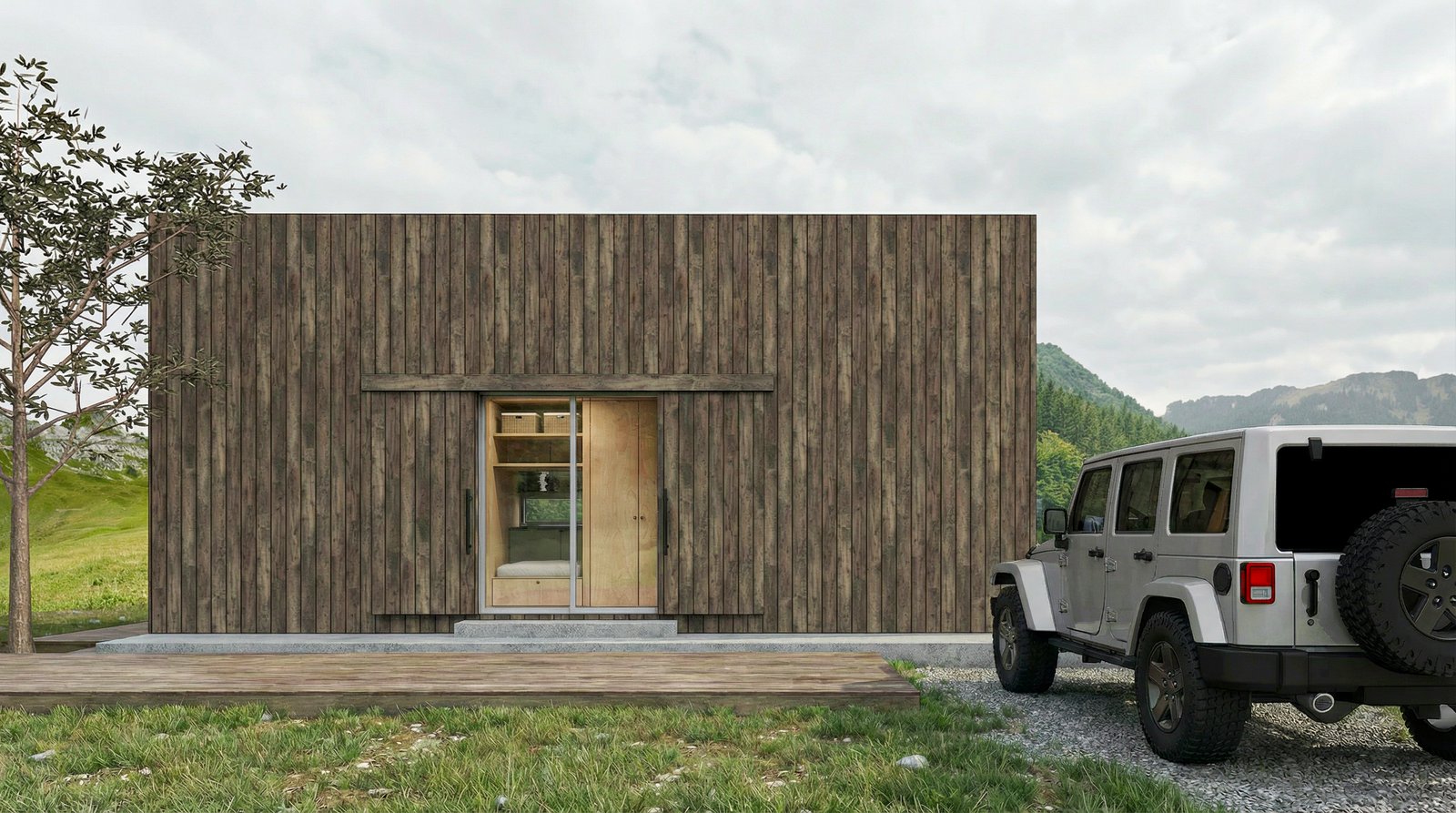
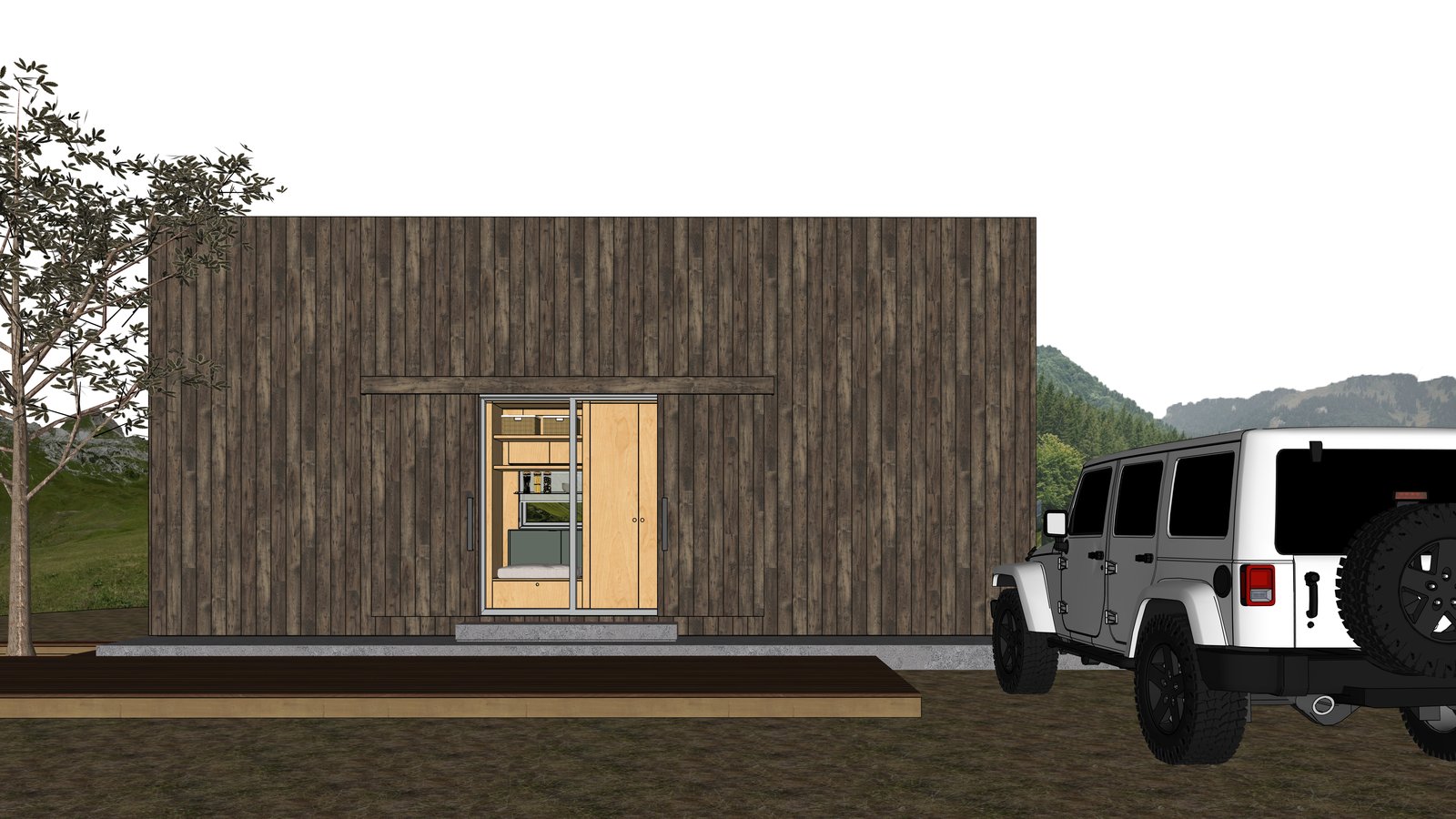
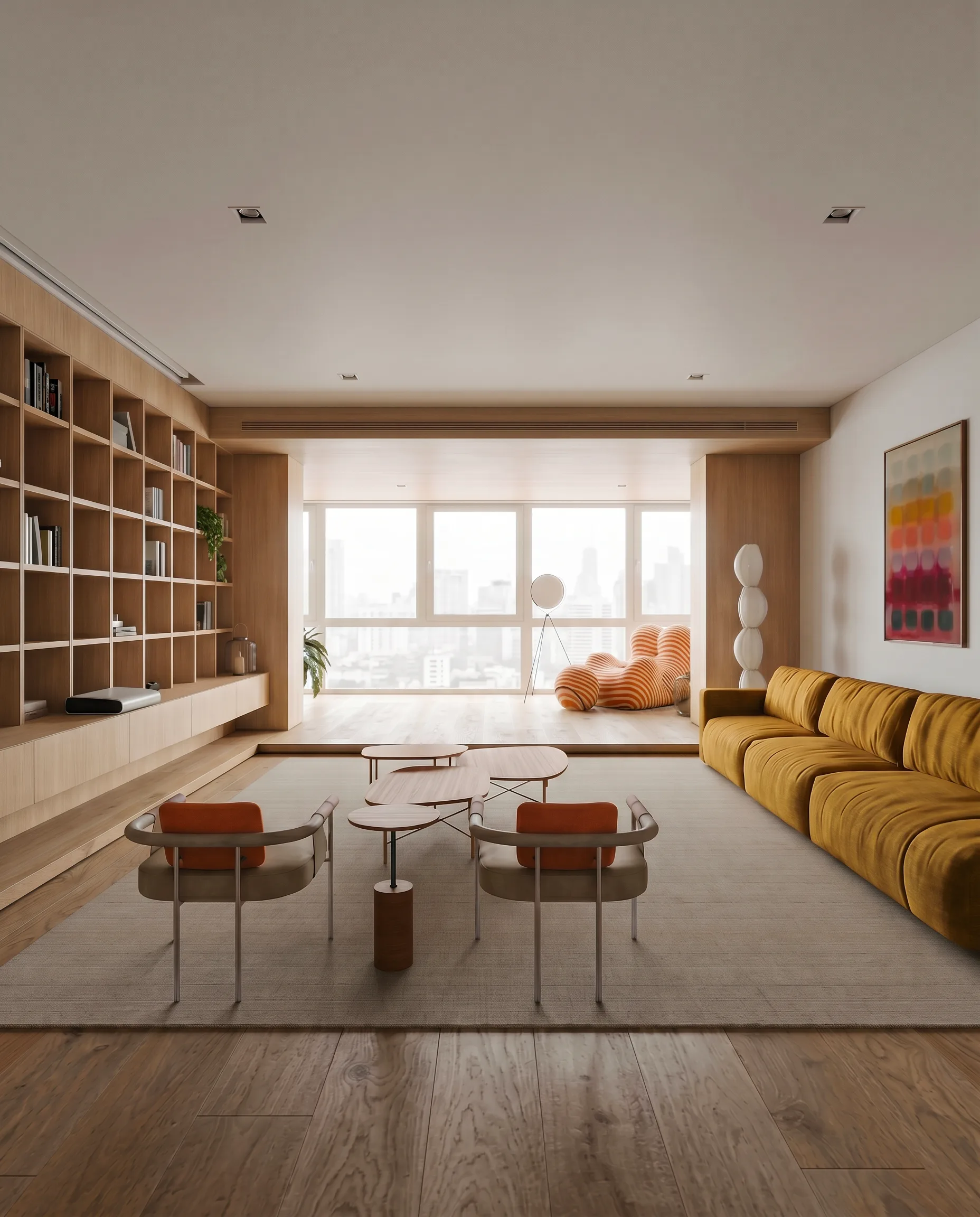
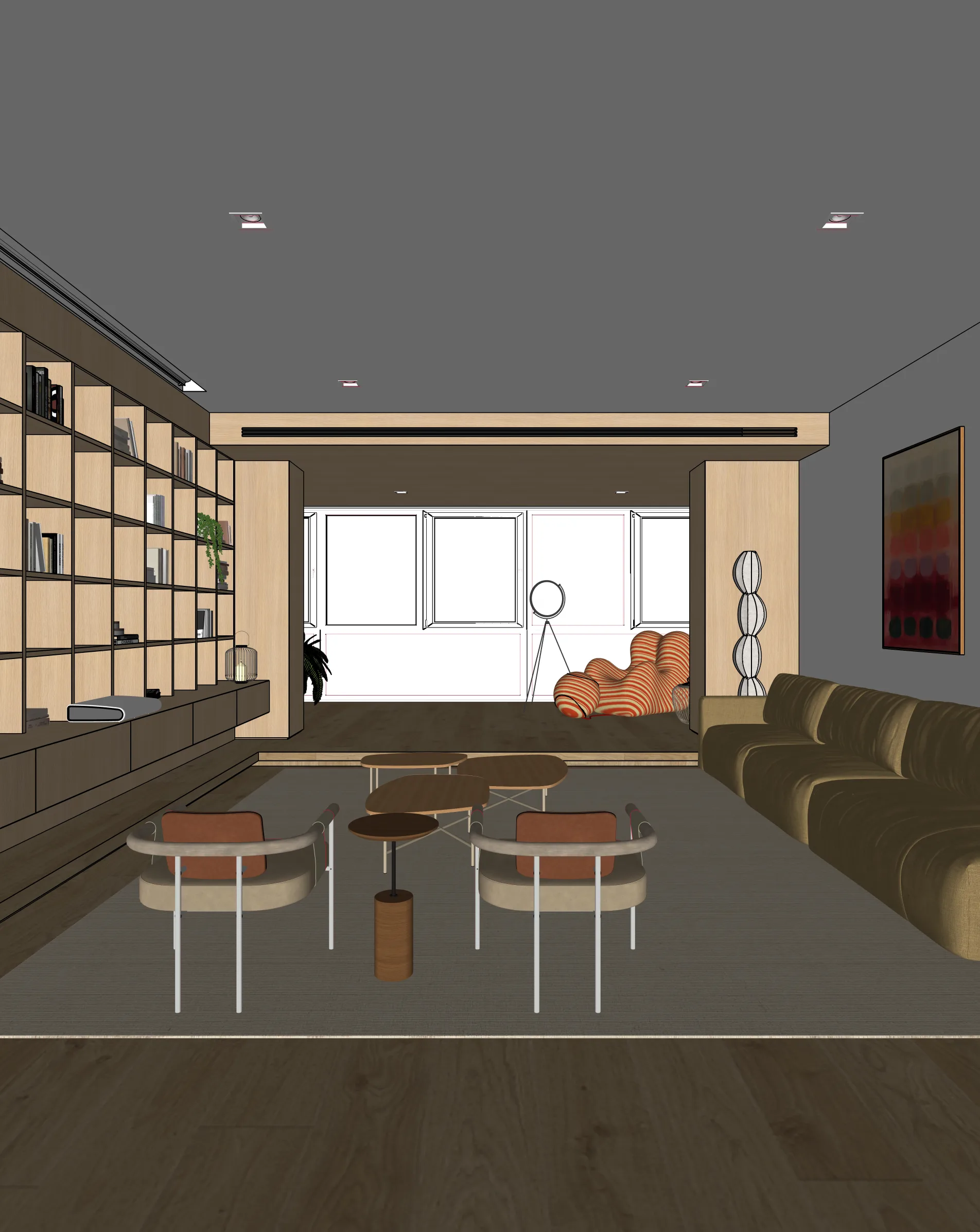
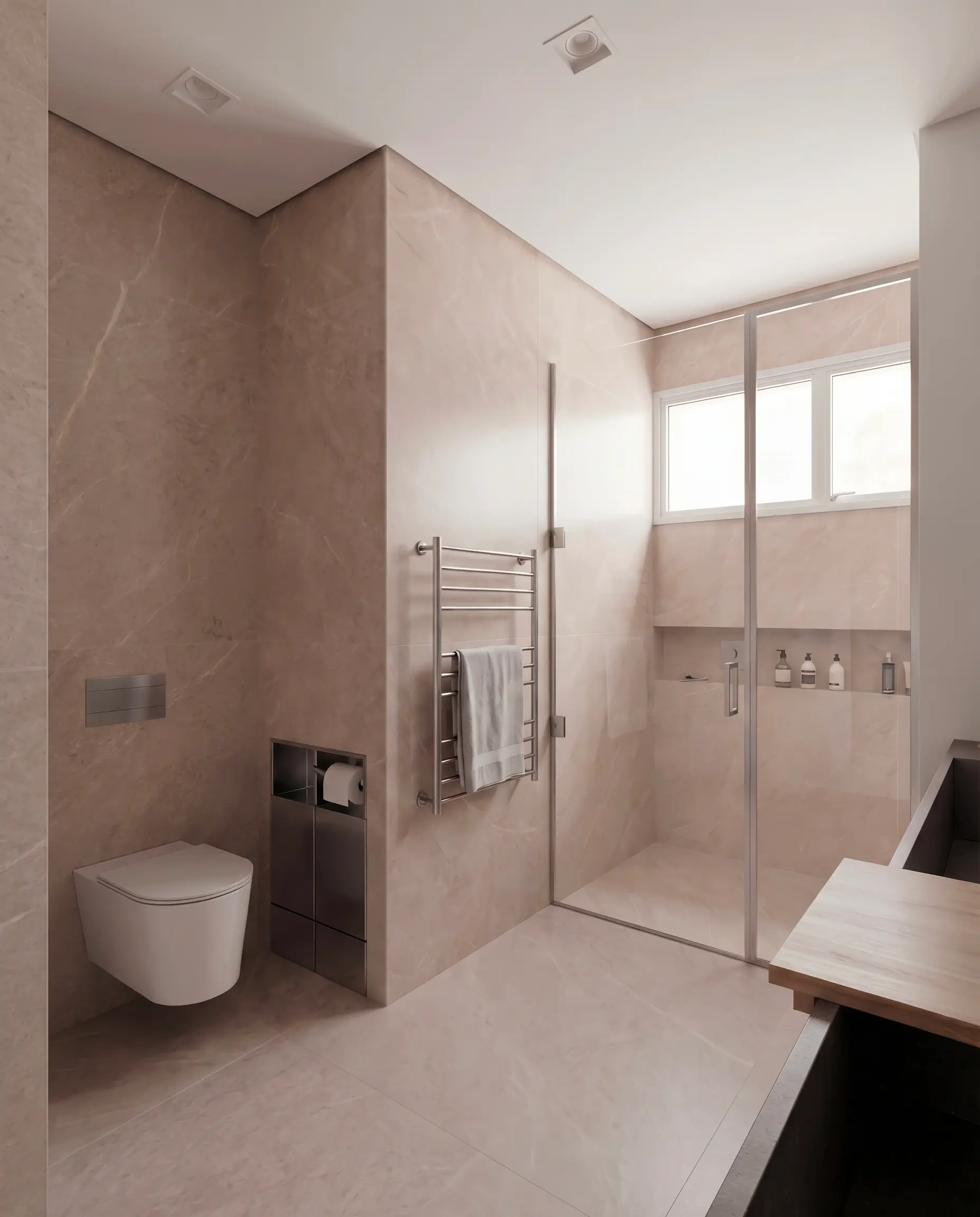
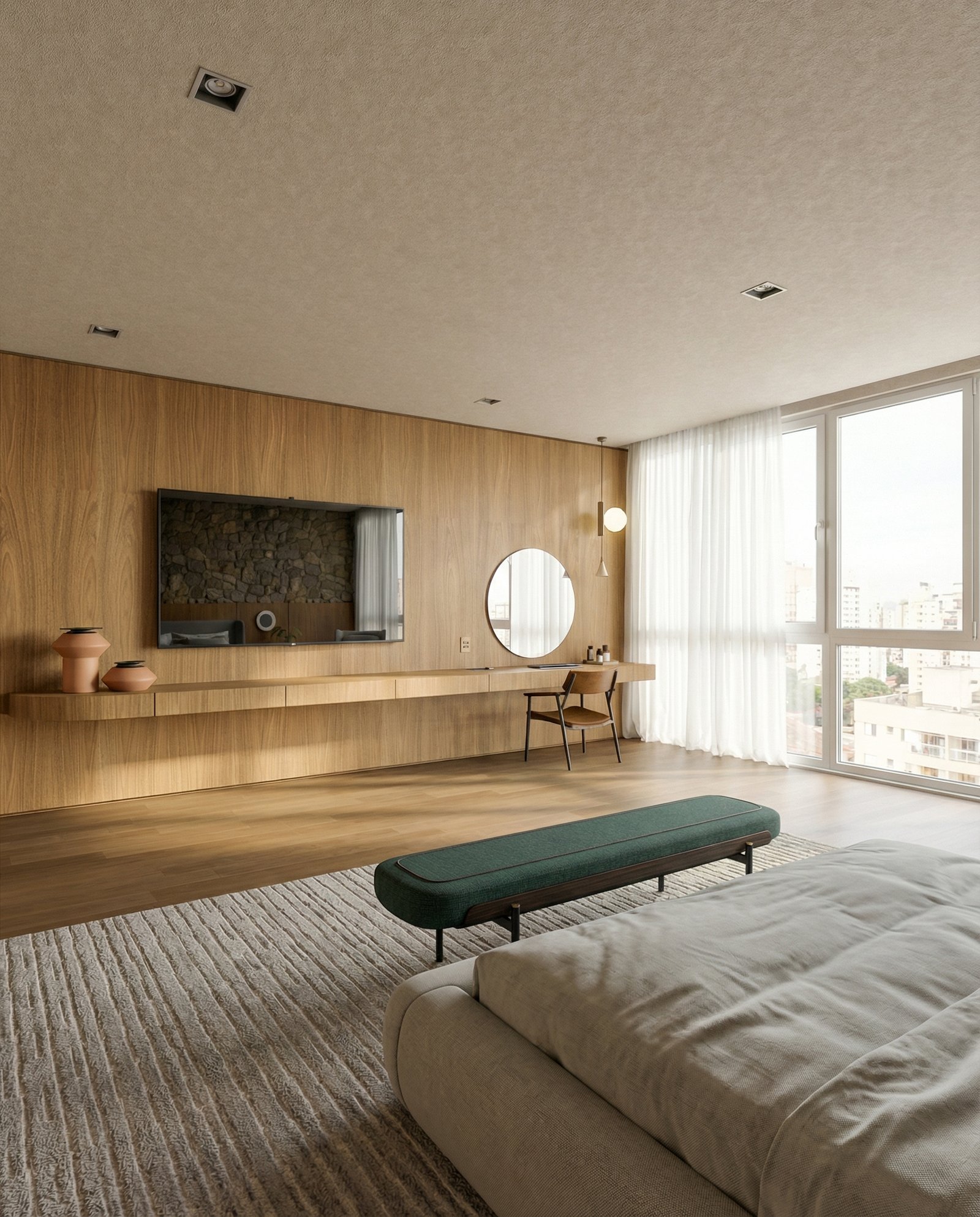
Render Revit views in seconds without the Enscape or Twinmotion install. Export a 3D view as PNG, upload to Maquete, and get a photorealistic interior or exterior render.
How it works
From Revit to photorealistic render in three steps
Export your view
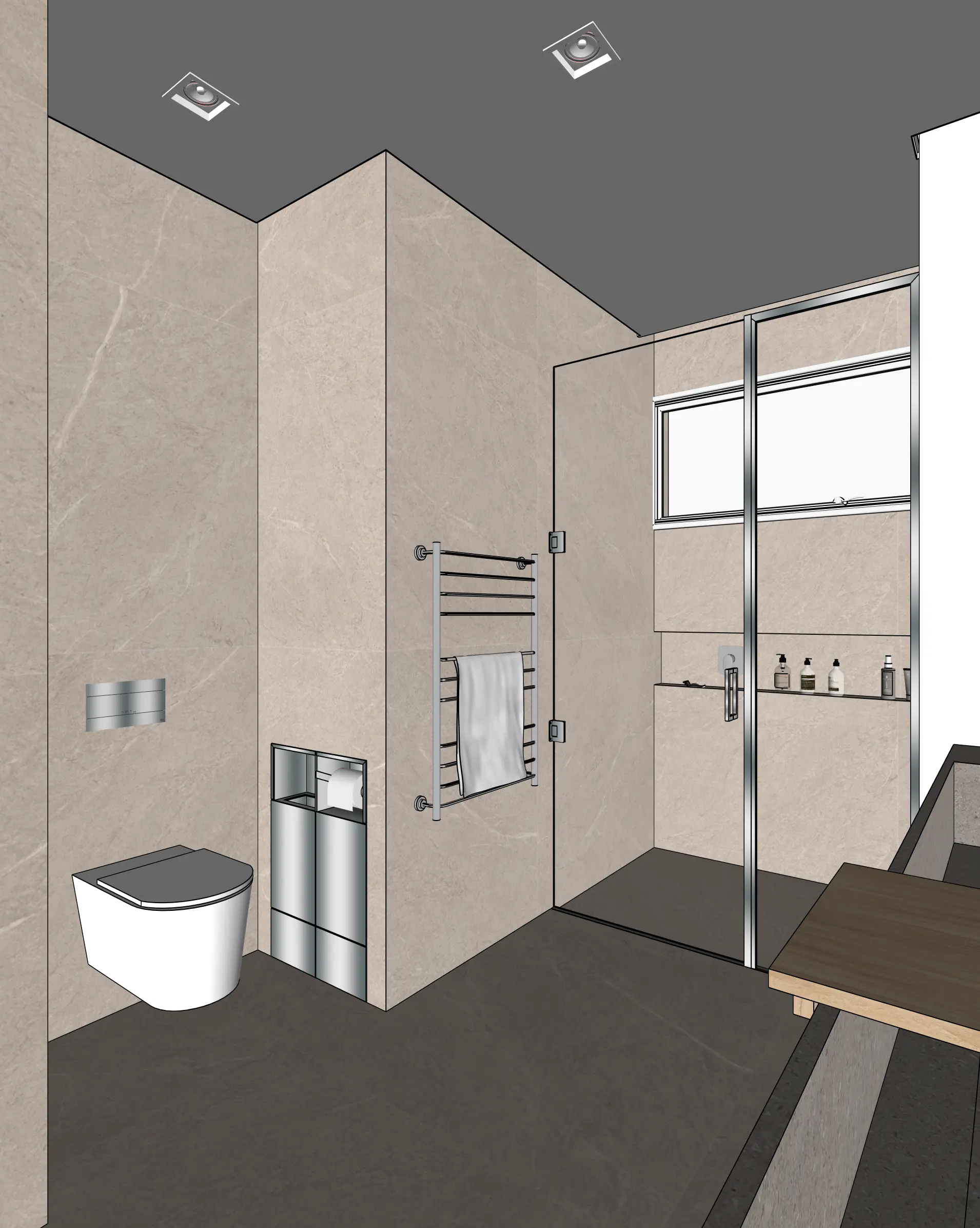
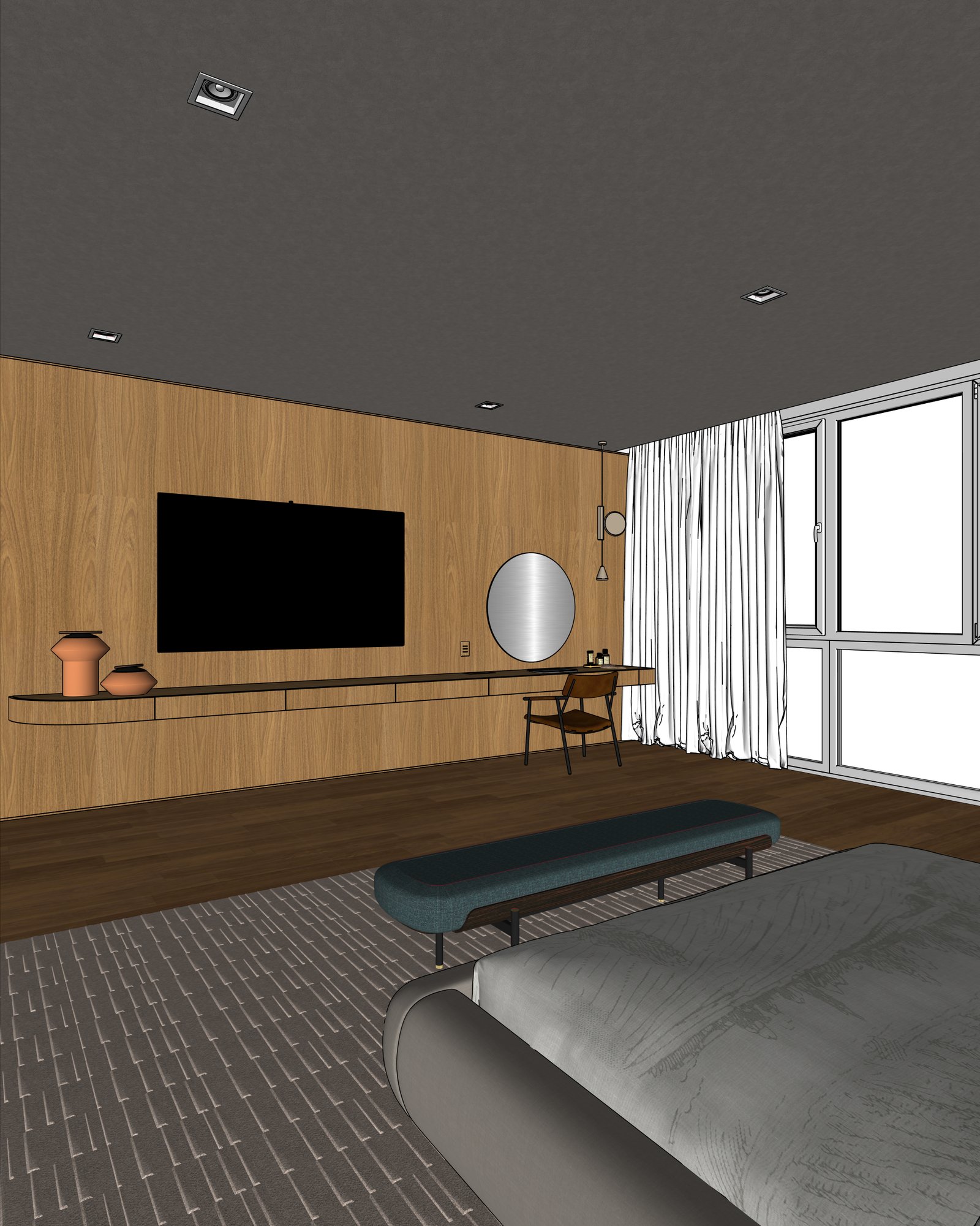
In Revit, set your 3D view or camera. Use File > Export > Image, or print to PNG. A shaded view with edges visible works best.
Upload to Maquete
Drag the image into the browser. No plugin install needed — just sign up and start.
Render in seconds
Pick lighting, materials, and time of day. Maquete returns a photorealistic render in around 30 seconds.
Examples
What you can render
FAQ
Common questions
Why use Maquete over Enscape or Twinmotion?+
Maquete is web-based with no install or licensing, costs a fraction of Enscape, and renders in seconds rather than requiring a real-time setup. For early-stage and client-facing renders, it's faster end to end.
Does Maquete need the Revit model?+
No — Maquete uses the exported image. You can share renders without sharing the .rvt file, which makes it easier to use during design reviews and with contractors.
Will Revit BIM data carry through?+
Maquete uses the exported view rather than the BIM model, so material assignments and family data don't transfer. Geometry — walls, openings, proportions — does.
Ready to render from Revit?
Start a 7-day free trial and try Maquete on a real project.