AI Rendering for Vectorworks
Photorealistic renders from Vectorworks
in seconds
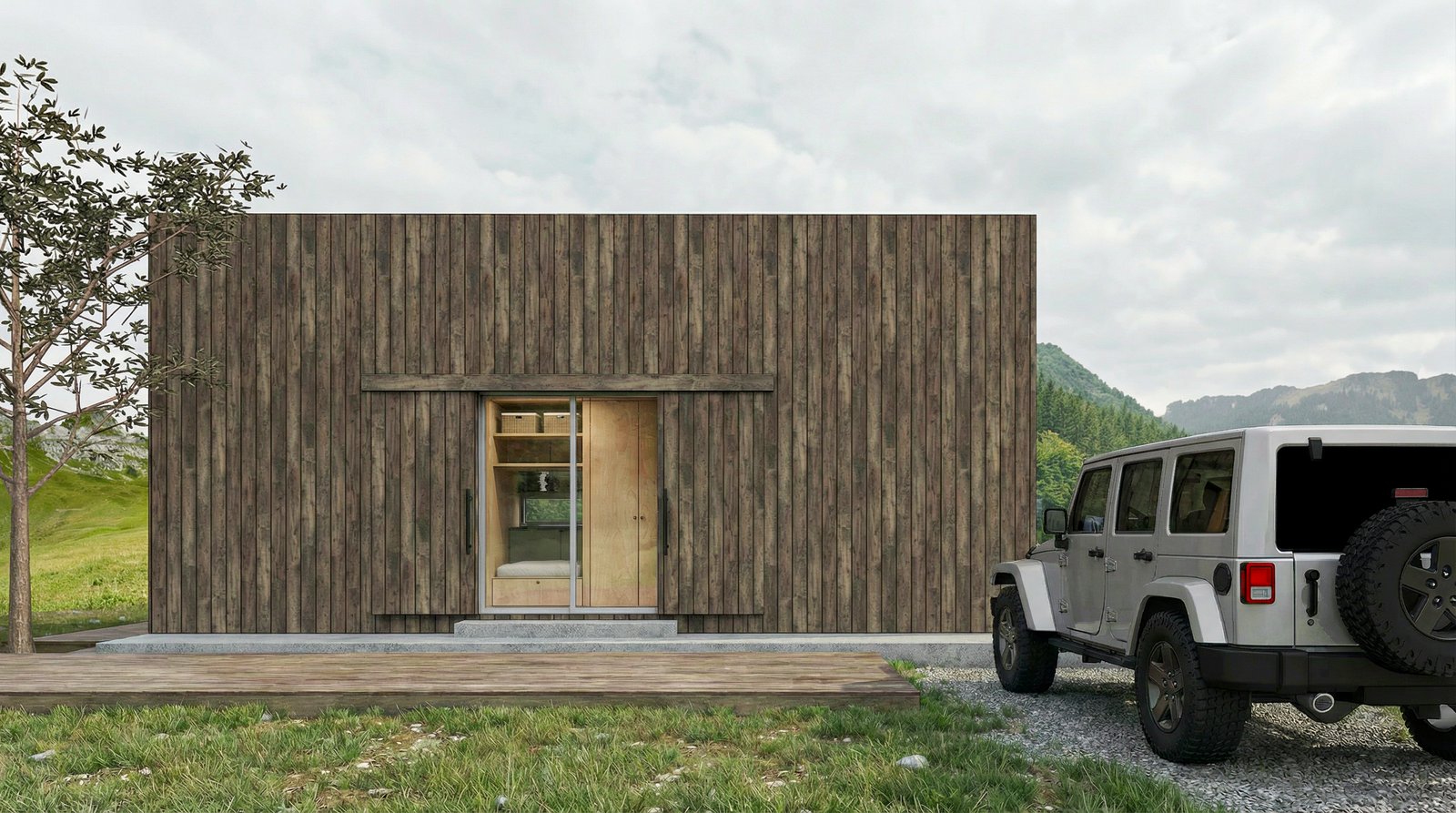
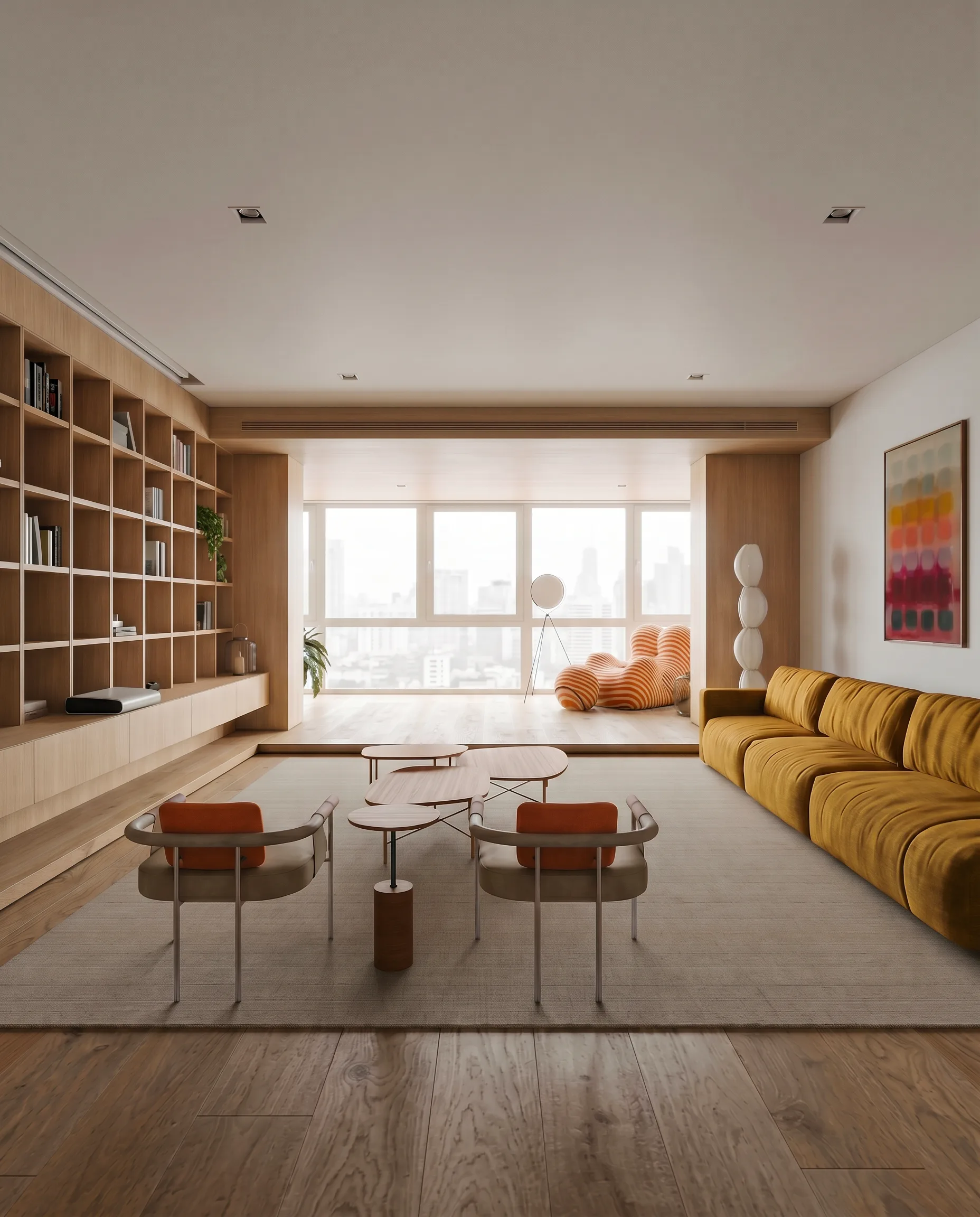
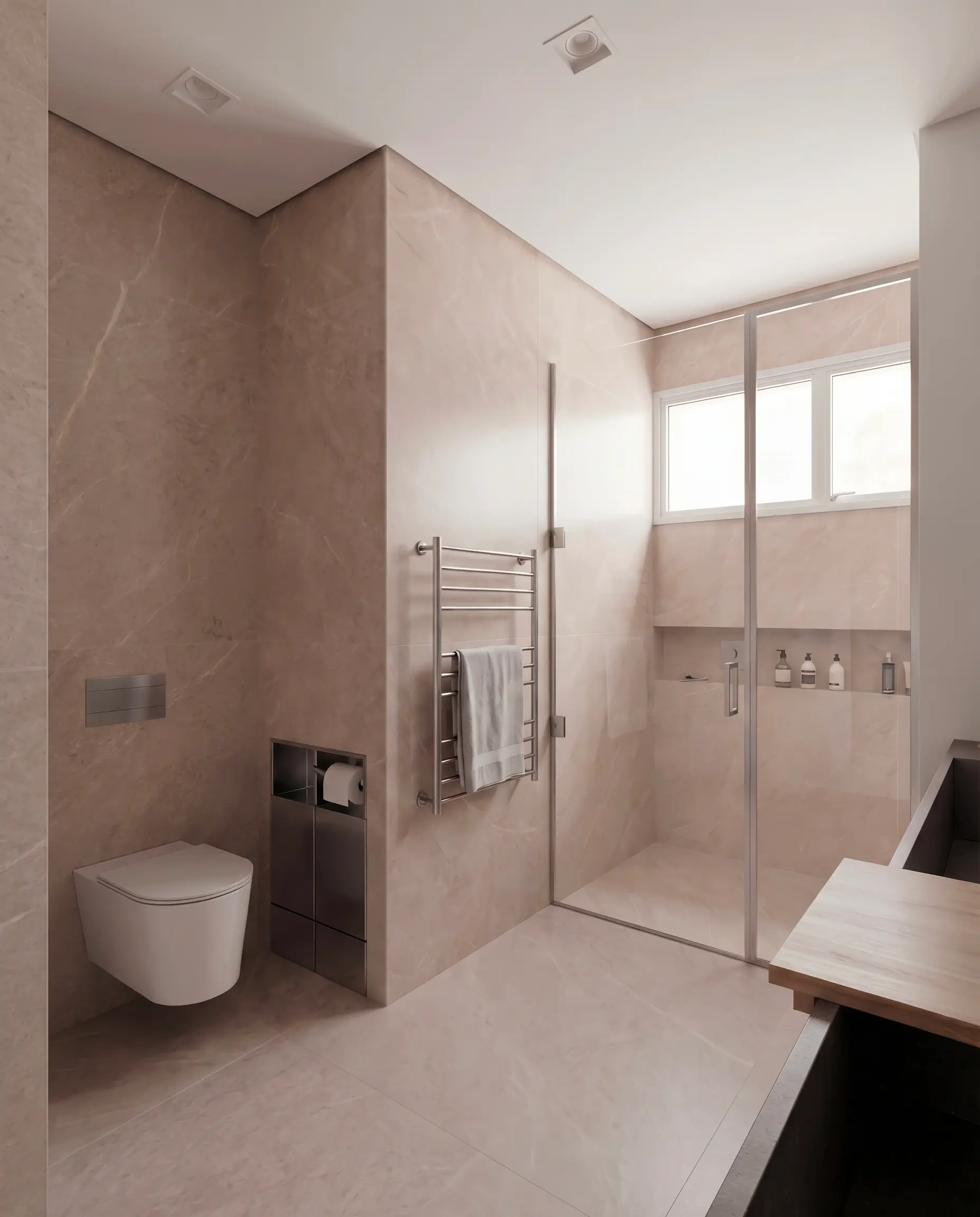
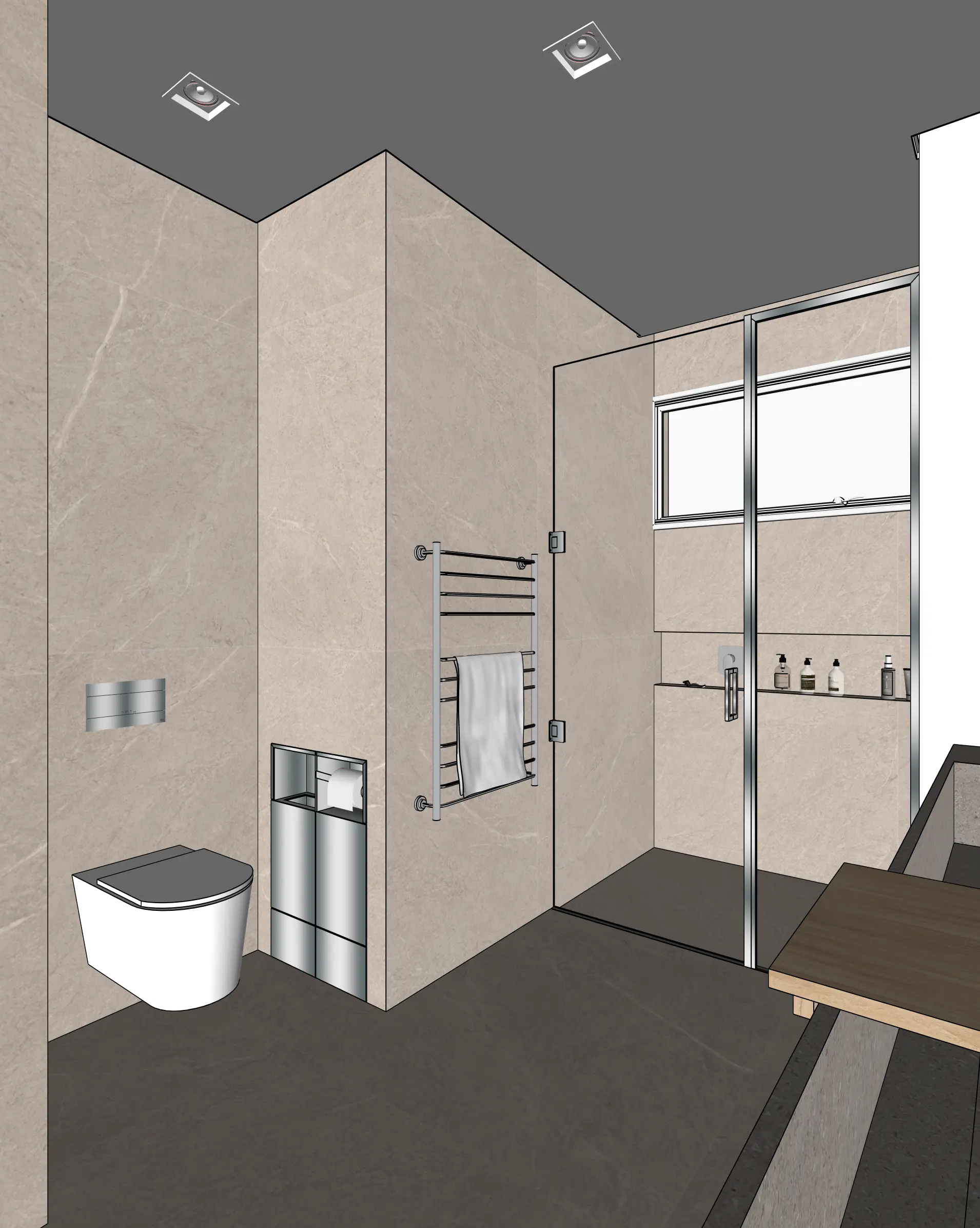
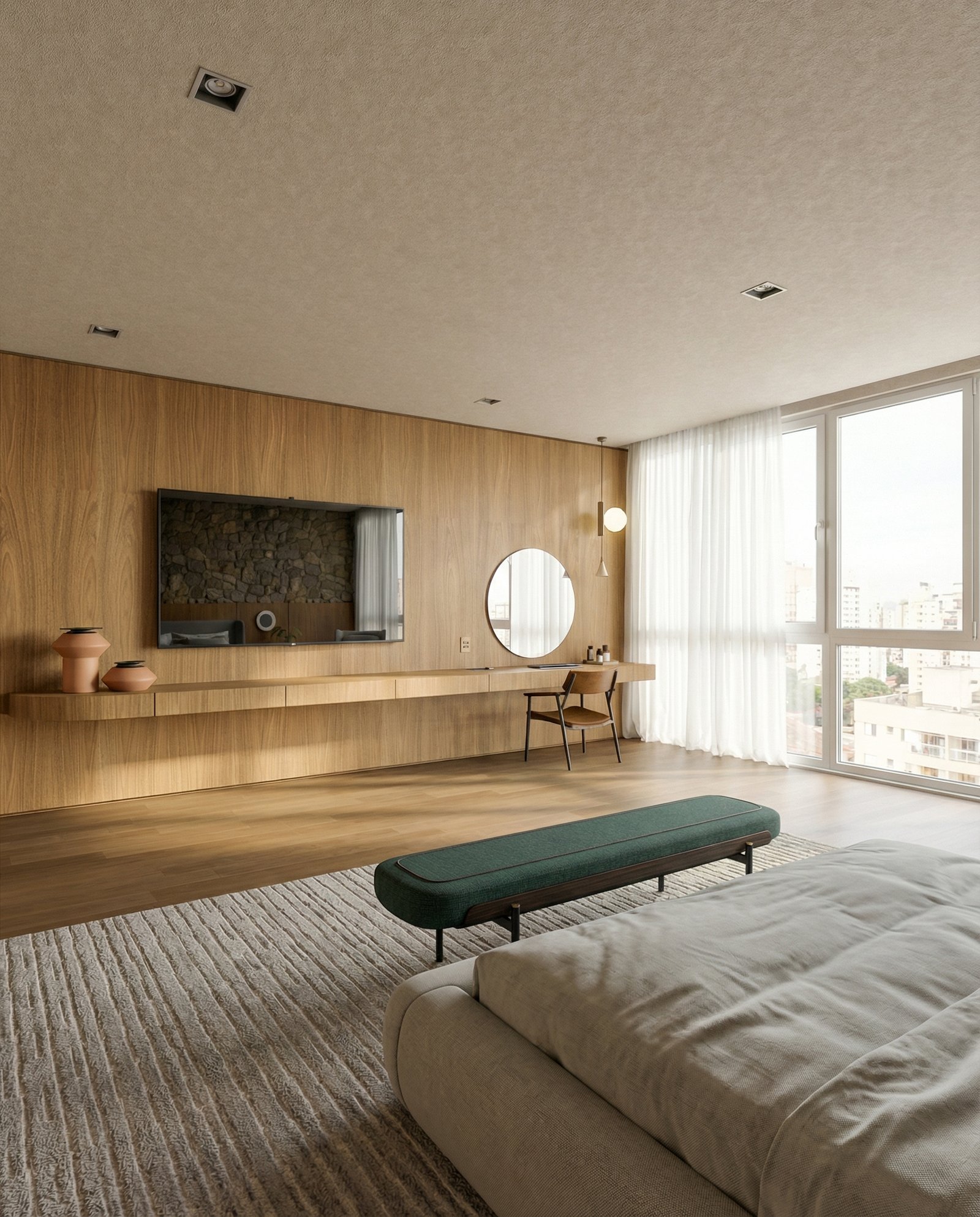
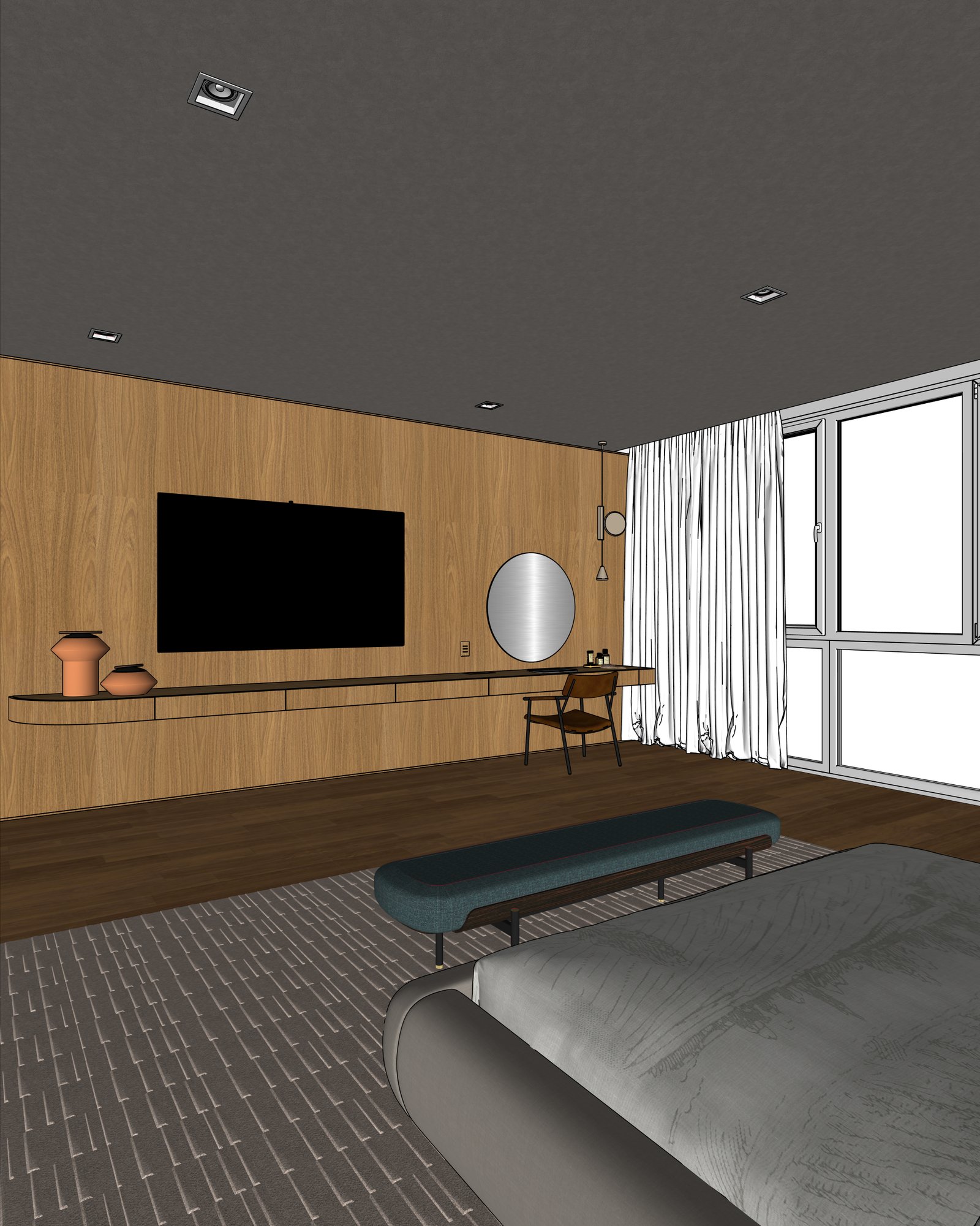
Turn Vectorworks viewports into photorealistic renders. Export a view as PNG, upload to Maquete, and get an interior or exterior render in around 30 seconds.
How it works
From Vectorworks to photorealistic render in three steps
Export your view
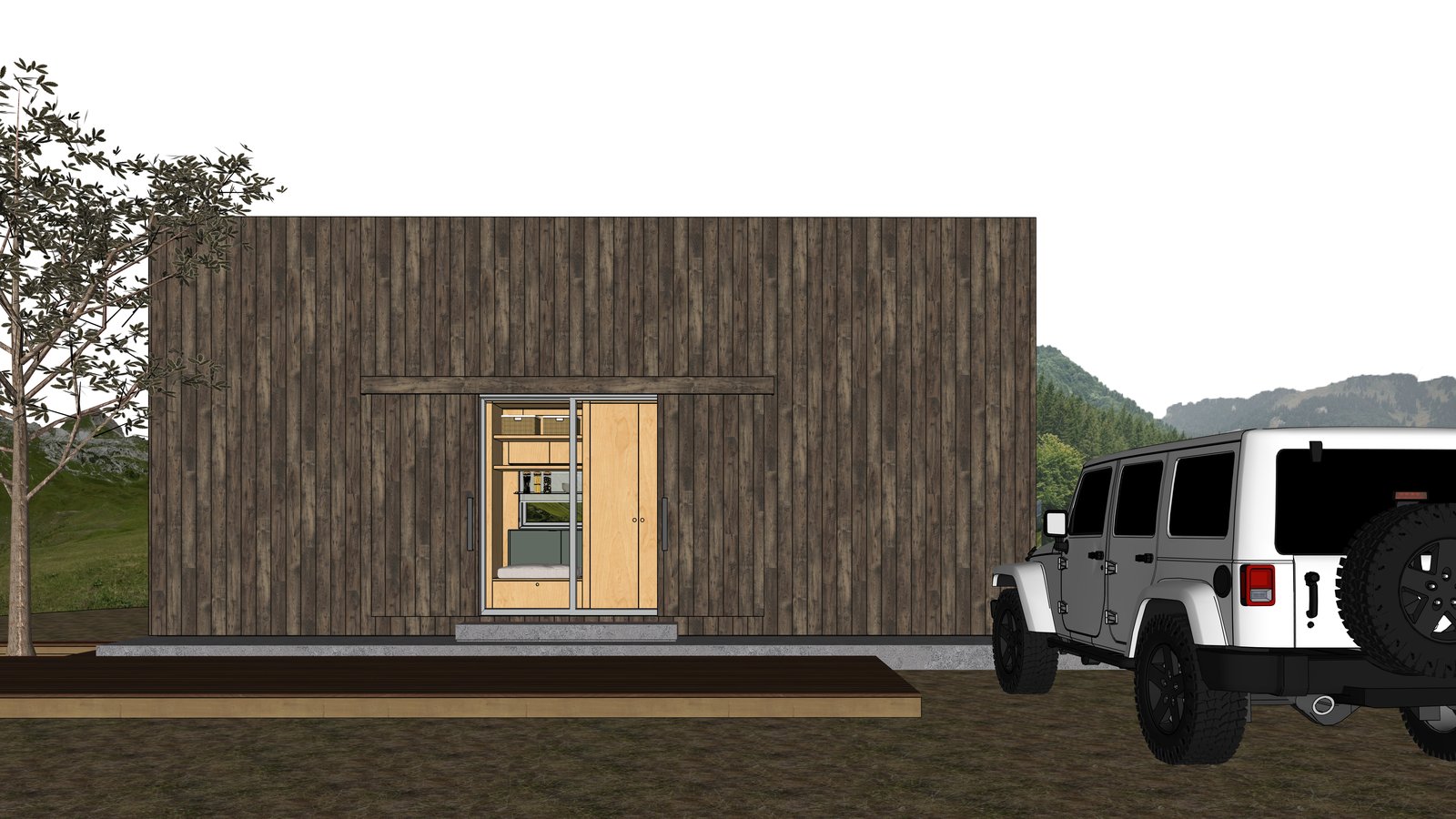
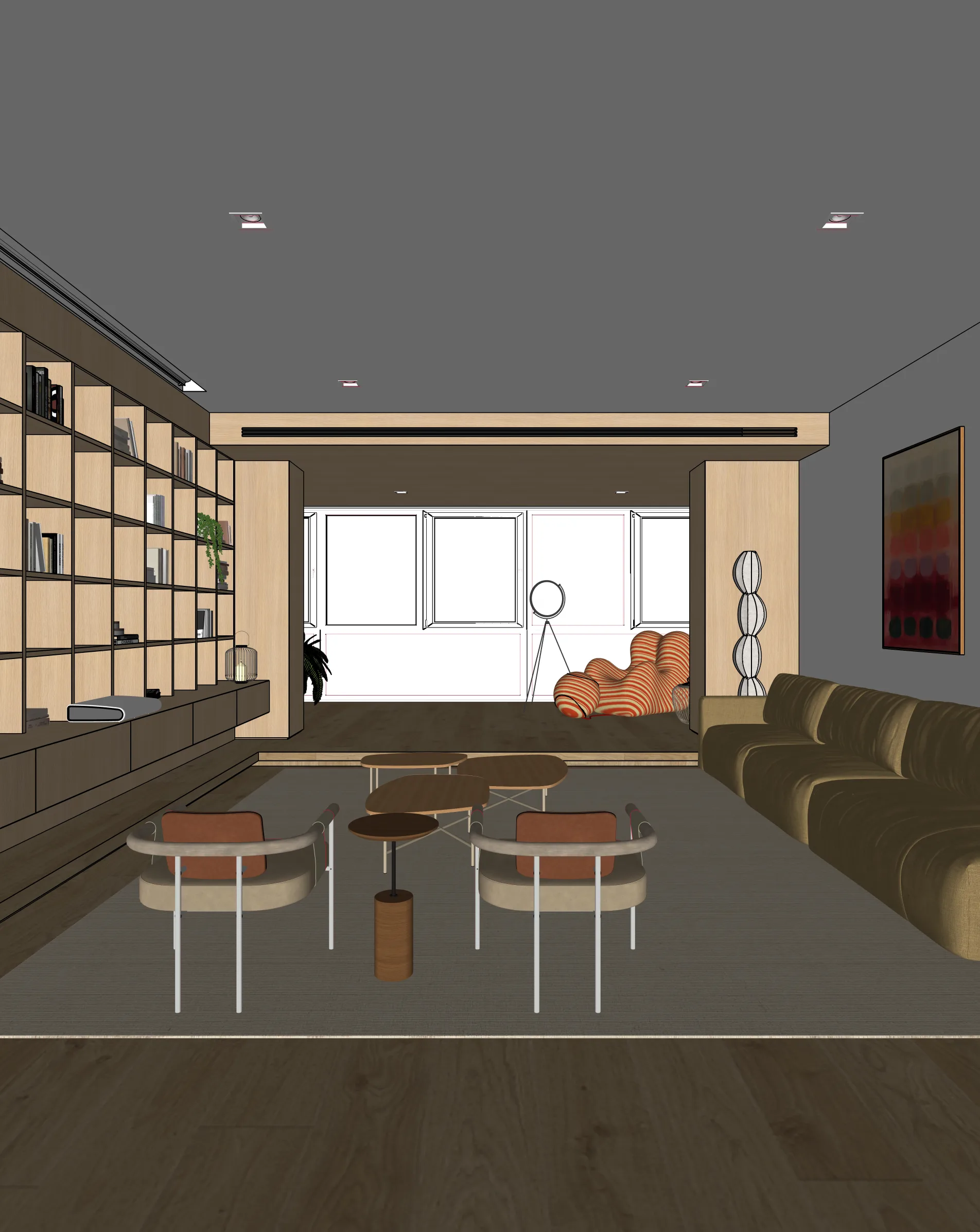
In Vectorworks, set your viewport to OpenGL or Renderworks. Use File > Export > Export Image File, save as PNG.
Upload to Maquete
Drag the image into the browser. No plugin install needed — just sign up and start.
Render in seconds
Pick lighting, materials, and time of day. Maquete returns a photorealistic render in around 30 seconds.
Examples
What you can render
FAQ
Common questions
Do I still need Renderworks?+
Not for photoreal output. Export a basic OpenGL viewport — Maquete adds the materials, lighting, and atmosphere. Use Renderworks only if you want a specific shading style as the input.
Does Maquete work with Vectorworks Architect?+
Yes. Vectorworks Architect, Landmark, and Spotlight all export images Maquete can render from. The exported view is what matters, not the Vectorworks edition.
Will site plans and landscapes render well?+
Yes. Use Maquete's exterior guided mode for landscape and site work — control vegetation, sky, and background to match the brief.
Ready to render from Vectorworks?
Start a 7-day free trial and try Maquete on a real project.