AI Rendering for Rhino
Photorealistic renders from Rhino
in seconds
Rhino is a precision modeller — Maquete handles the photorealism. Export a viewport, upload, and skip the V-Ray or Enscape setup.
How it works
From Rhino to photorealistic render in three steps
Export your view
In Rhino, set your viewport to the angle you want. Use File > Export Selected, or View > Capture > To File for a PNG or JPG.
Upload to Maquete
Drag the image into the browser. No plugin install needed — just sign up and start.
Render in seconds
Pick lighting, materials, and time of day. Maquete returns a photorealistic render in around 30 seconds.
Examples
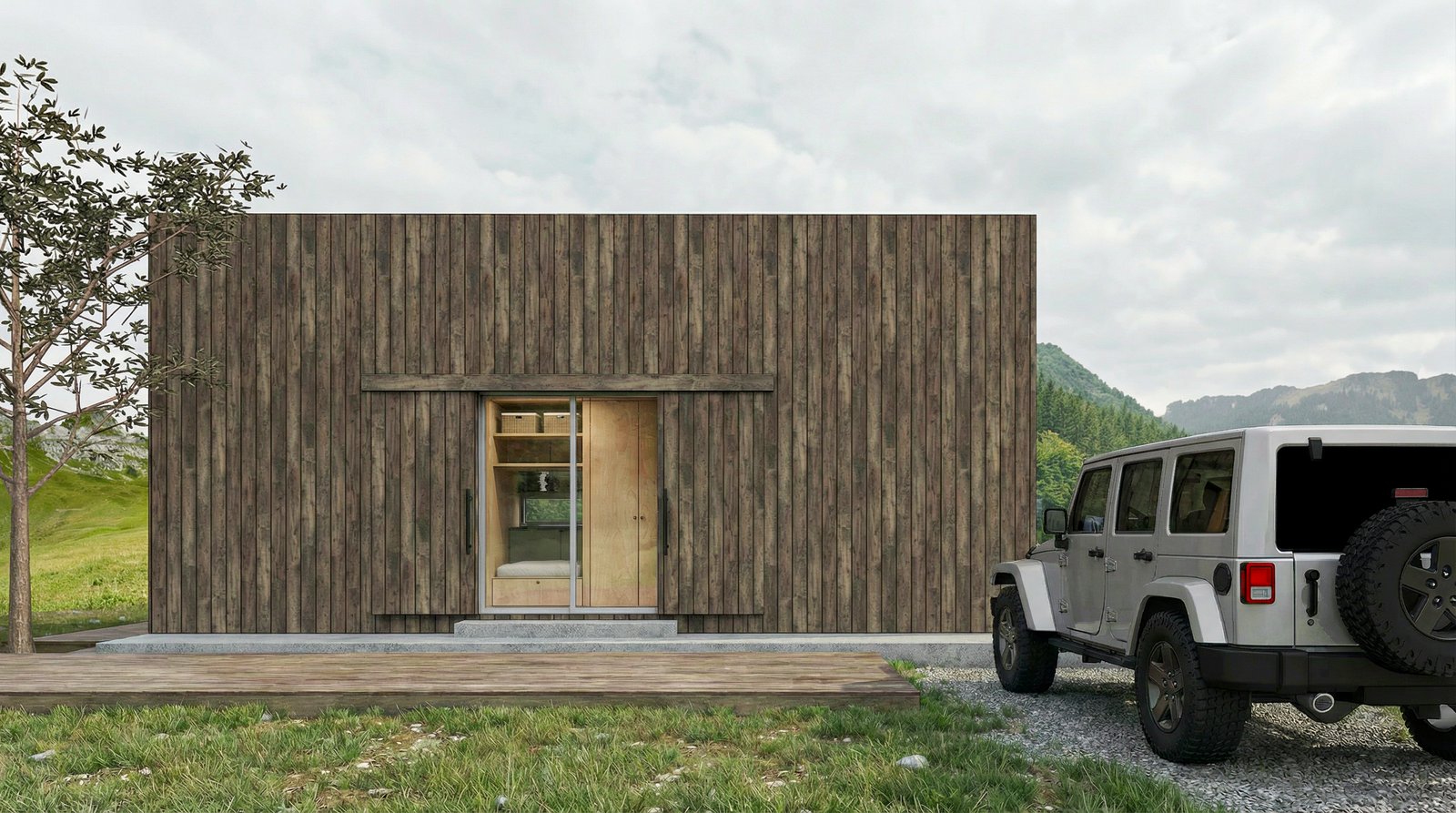
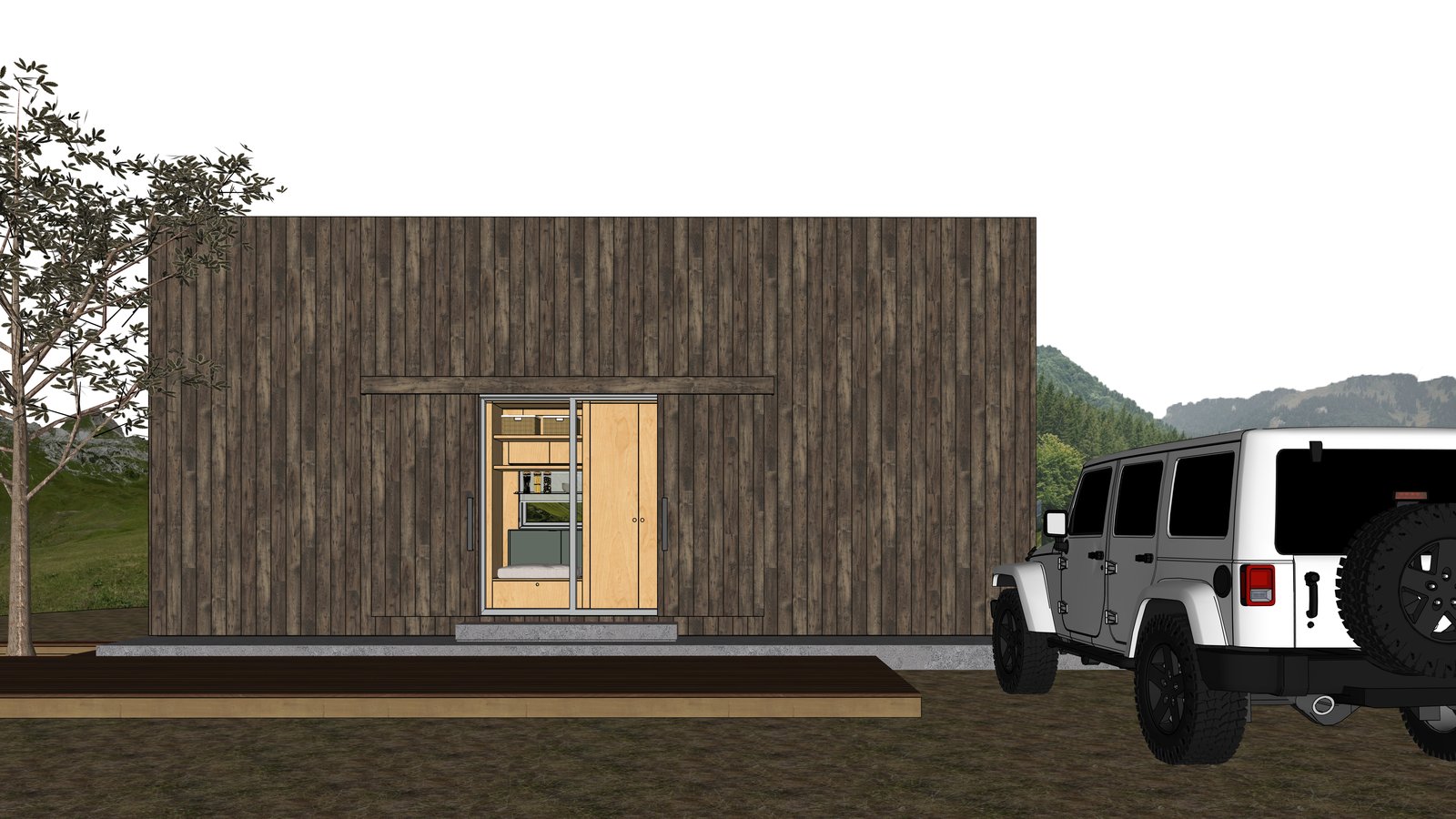
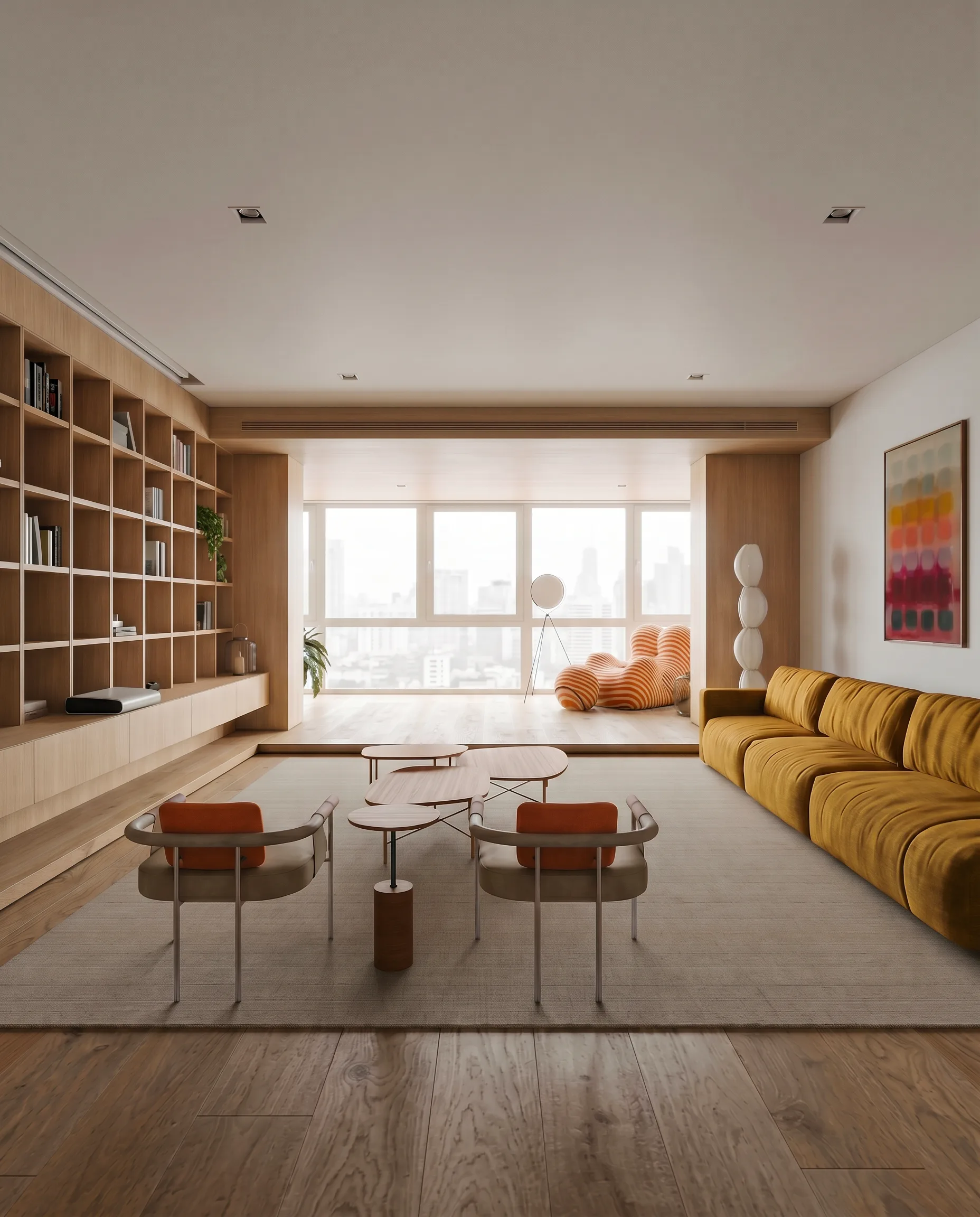
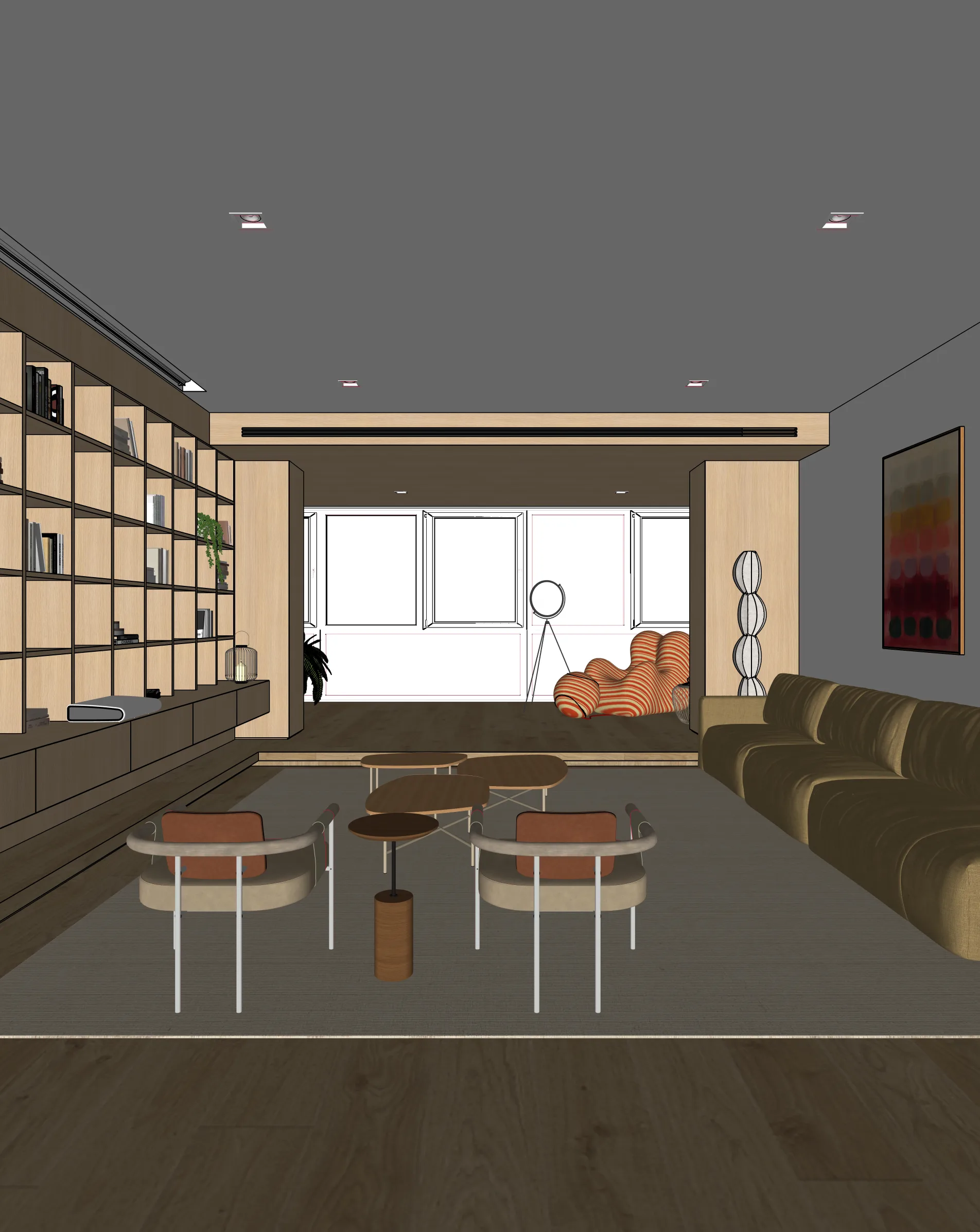
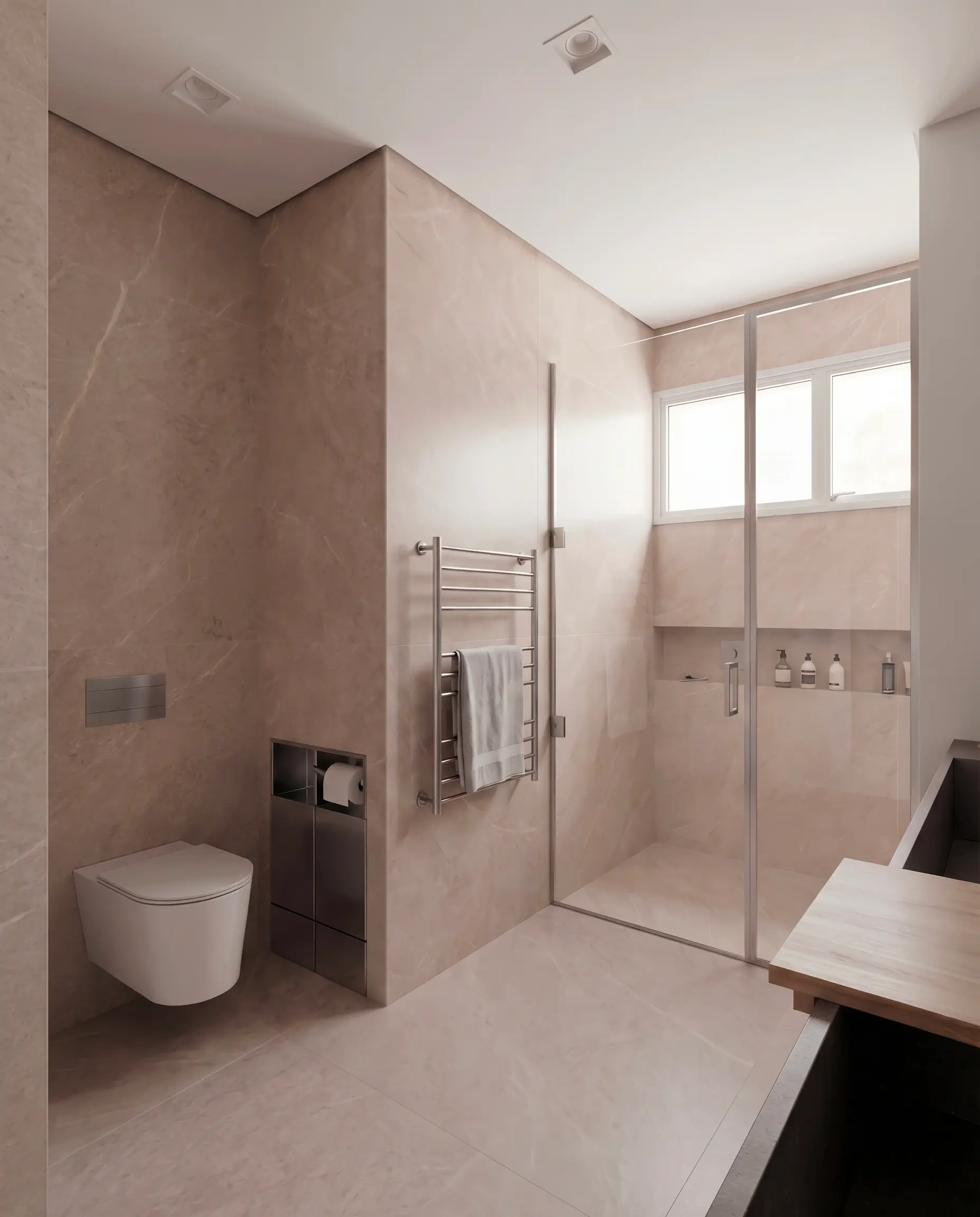
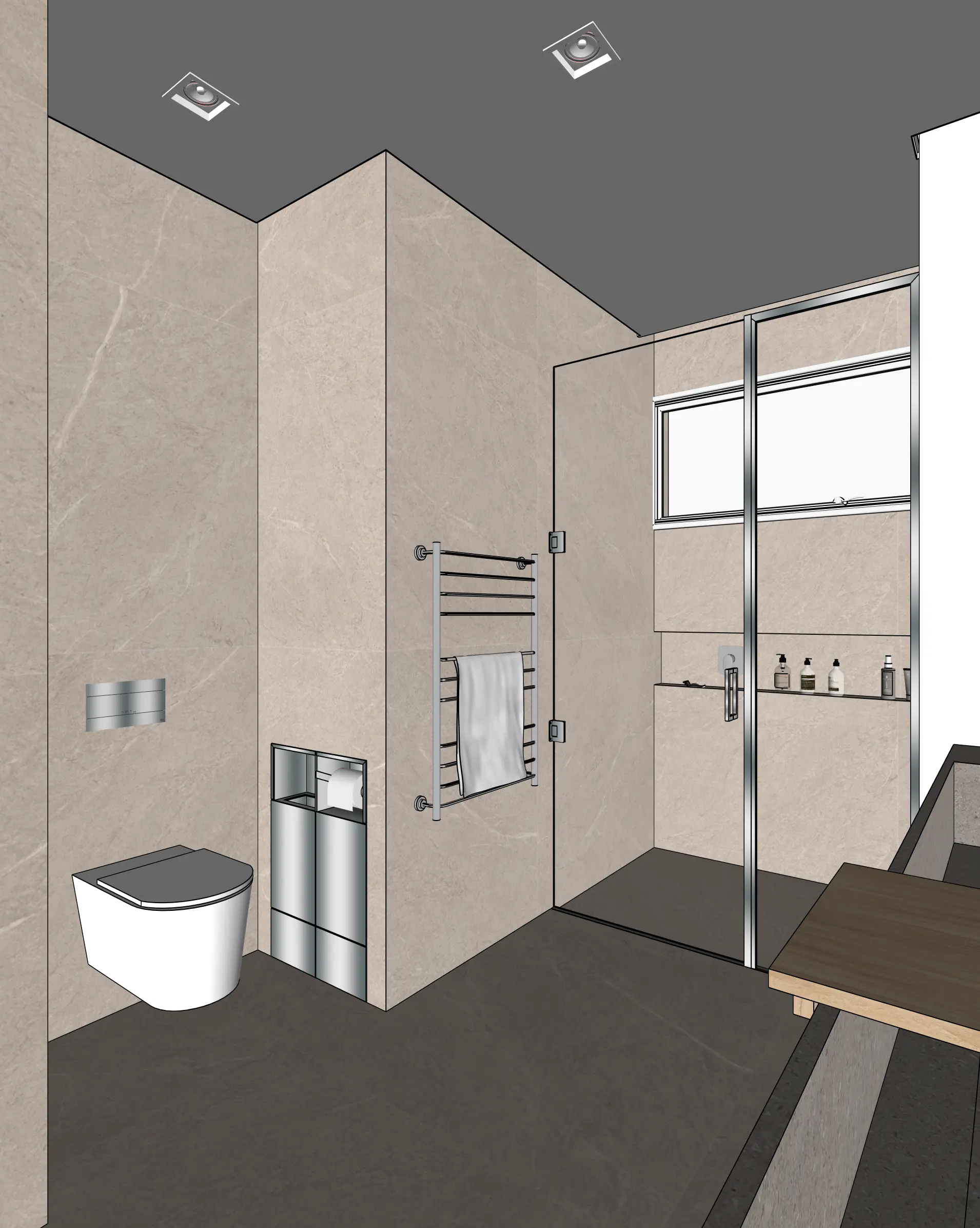
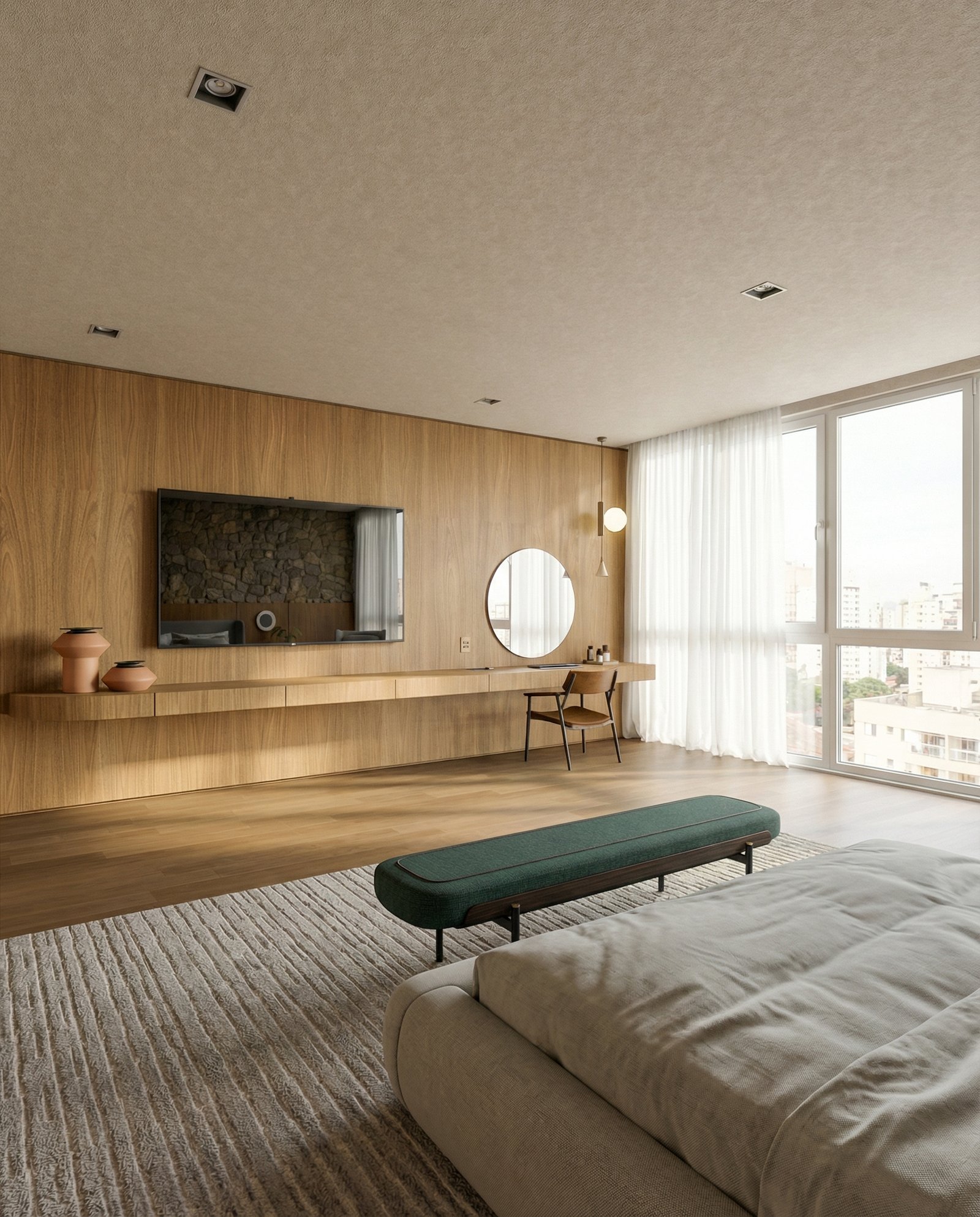
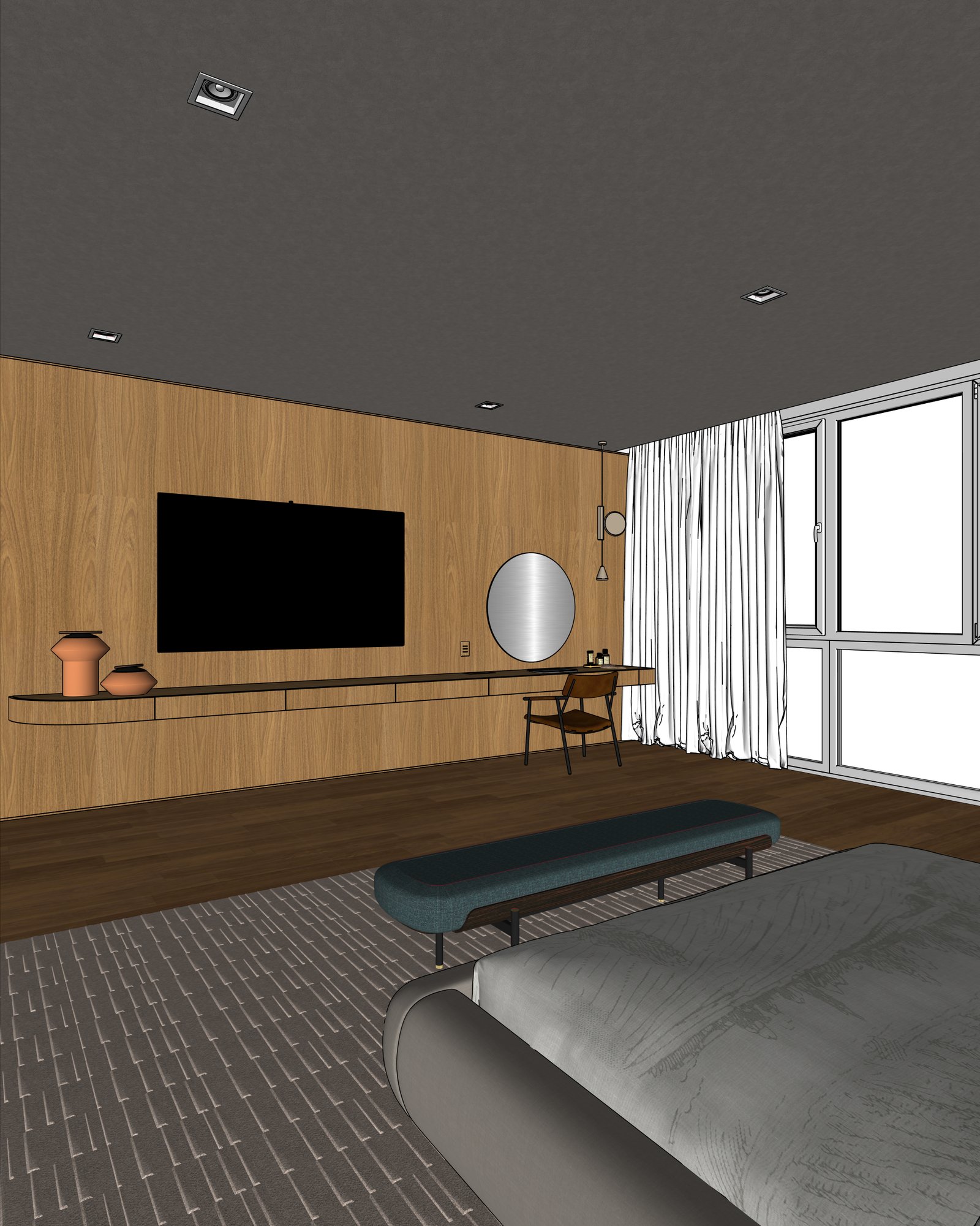
What you can render
FAQ
Common questions
Does Maquete work with Rhino 7 and 8?+
Yes. Maquete works with any image exported from Rhino — viewport captures, ray-traced previews, or rendered base passes. The Rhino version doesn't matter because we use the exported image, not the .3dm file.
Do I need V-Ray or Enscape installed?+
No. Export a basic shaded viewport — Maquete adds the lighting, materials, and atmosphere from your prompt and lighting presets.
Will the result match my Rhino geometry?+
Yes. Geometry preservation is the core of how Maquete works. Walls, openings, furniture placement, and proportions stay faithful to your exported view. Materials and lighting are what change.
Ready to render from Rhino?
Start a 7-day free trial and try Maquete on a real project.