Architectural detail shots
Create several close-ups from one render. Select suggested details, add a Custom framing, choose ratio and quality, and download each result.
Updated
On this page
Before you start
Let's create several architectural detail shots from one render. Choose an image from Maquete, or upload a completed render from your computer.
Step by step
-
Open Detail and click the upload area. Choose an image from Maquete, or upload a completed render from your computer. Maquete analyses the image and suggests details to capture.
-
Each card describes a different framing. You can select more than one to generate several close-ups together. Random picks a single suggestion for you. For this kitchen, select the marble worktop and the checkerboard floor beneath the burgundy cabinetry. Then select Custom as well, and describe a close-up of the marble worktop where it meets the sink. This adds a third detail while keeping the other two selected.
-
Under Ratio, choose Custom and enter three by four for a portrait layout. Choose 2K. The Generate button shows the number of selected details and the total credit cost. For these three images at 2K, that's three credits. Select Generate three details. Maquete creates a separate close-up for each selection.
-
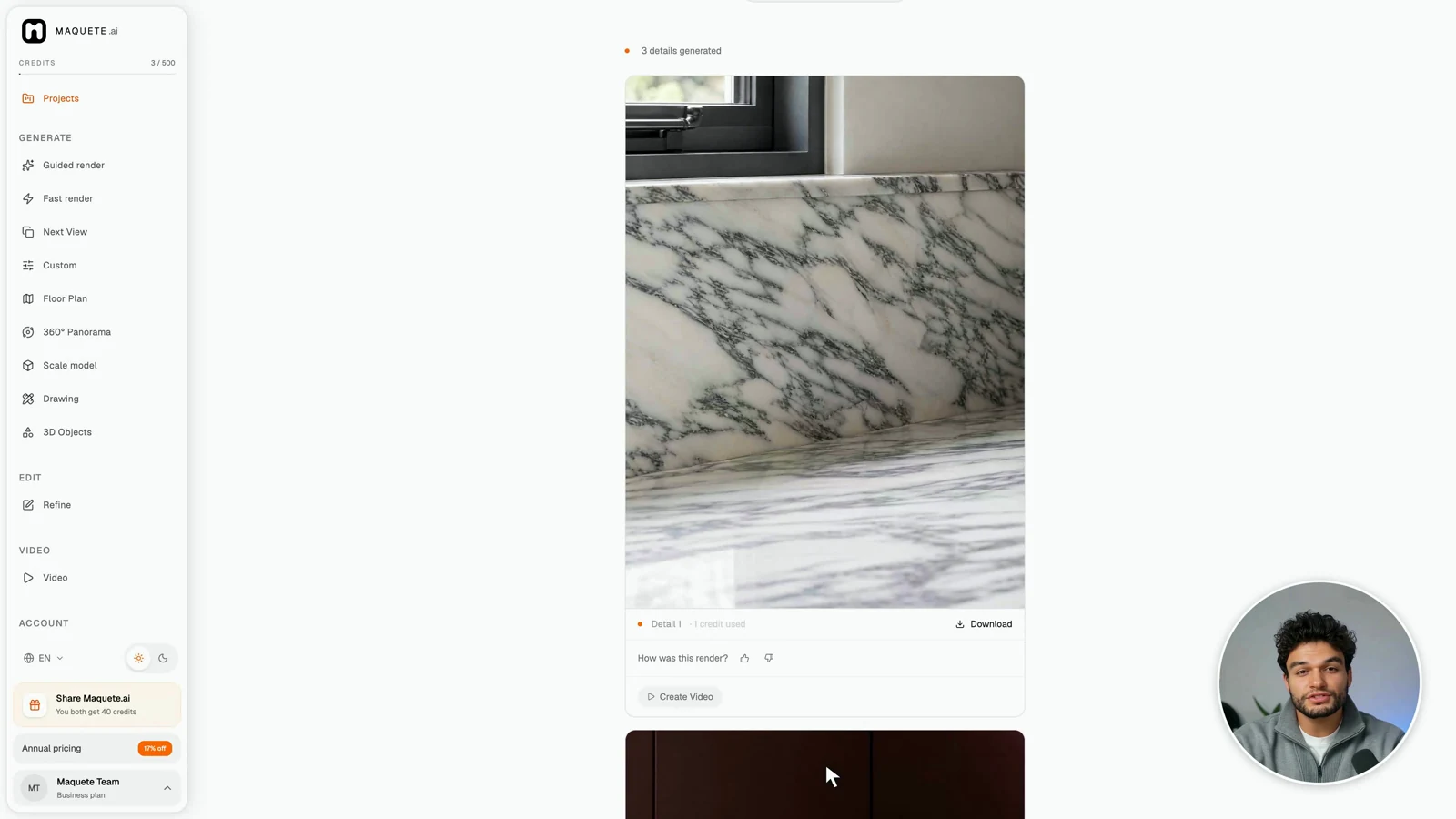
When the images are ready, scroll through the results. The first shows the marble veining at the worktop. The second highlights the checkerboard floor and the base of the cabinetry. The third brings you closer to the junction between the marble and the sink. Select Download beneath each image to save it.
Settings that matter
Each 2K image uses 1 credit; each 4K image uses 2.
If something goes wrong
Next step
Use these close-ups alongside the full render to present the materials and finishes in more detail.